

Before you start
- Any plan works, since link and QR code surveys are on every plan and need no install code.
- Your role has the Manage surveys permission.
- You have a place for the code, such as receipts, table cards, packaging or a poster at the counter.
Create the survey
- On the Surveys page, select Create survey, then Templates.
- Find Customer satisfaction (CSAT) and select Preview.
- In the switch at the top of the preview, select Link, then select Use template.
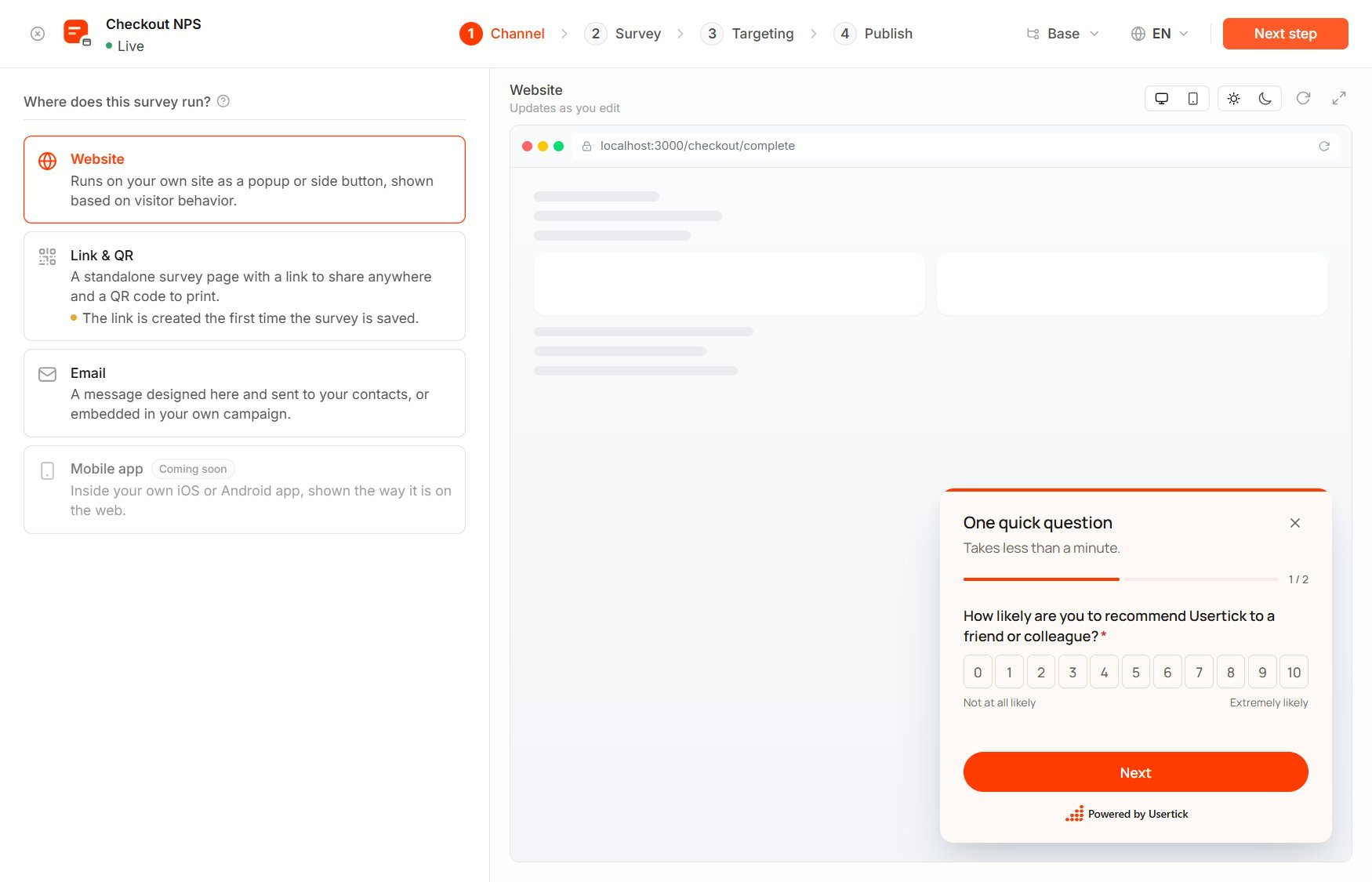
The Channel step
Publish and download the code
- In the Share step, select Publish.
- Point to the code under QR code, select Download QR code, then PNG image for screens and office printers or SVG vector for print shops and large posters.
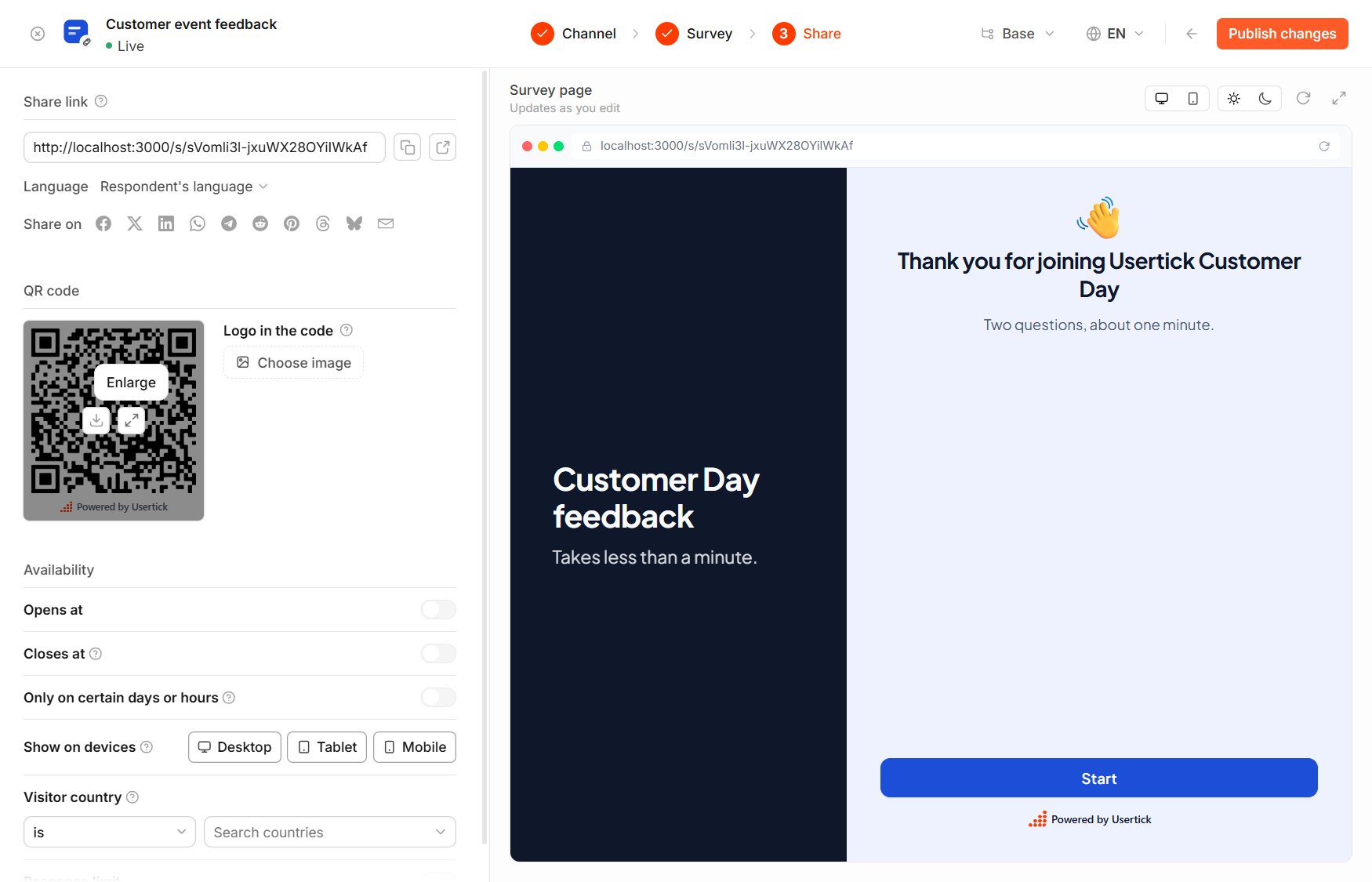
The QR code in the Share step
Keep printed codes working
The code contains the survey’s link, which doesn’t change. After you edit and publish the survey again, a printed code opens the new version, so a wording change needs no reprint. To stop collecting responses, pause the survey. The code does change with the Language and Domain settings in the Share step, so download it again after changing either. To close the survey on a date or after a number of responses, see Limit when the link accepts responses.Tell locations apart
If you have several stores or tables, print one code per location, making each one with a QR code generator from the link plus a parameter:a as the parameter, because ?a= fills in the answer to the first question.
Check that it works
- Scan the code with your phone’s camera and open the link, which opens the survey page.
- After you answer it, the response appears in Inbox with Usertick link page as its Page, and pointing at it shows the full address with its parameter.