

Before you start
- You need an HTTPS address that accepts POST requests. To see the requests before your own server is ready, use a temporary address from a request inspection service, which lists every request it receives.
- Your role has the Manage integrations permission. If your account uses two-factor authentication, Usertick asks for a code before it creates the webhook.
- Any plan works, with 1 endpoint on Free, 3 on Starter, 10 on Pro and 25 on Business.
Create the endpoint
- Go to Settings → Developers → Webhooks and select New webhook.
- Enter a Name, such as “Order system”, and the URL, which must start with
https://. - Under Survey events, set Surveys to Only selected surveys and select your surveys, or set it to All surveys, including new ones.
- Set When to When a response is submitted.
- Select Create webhook.
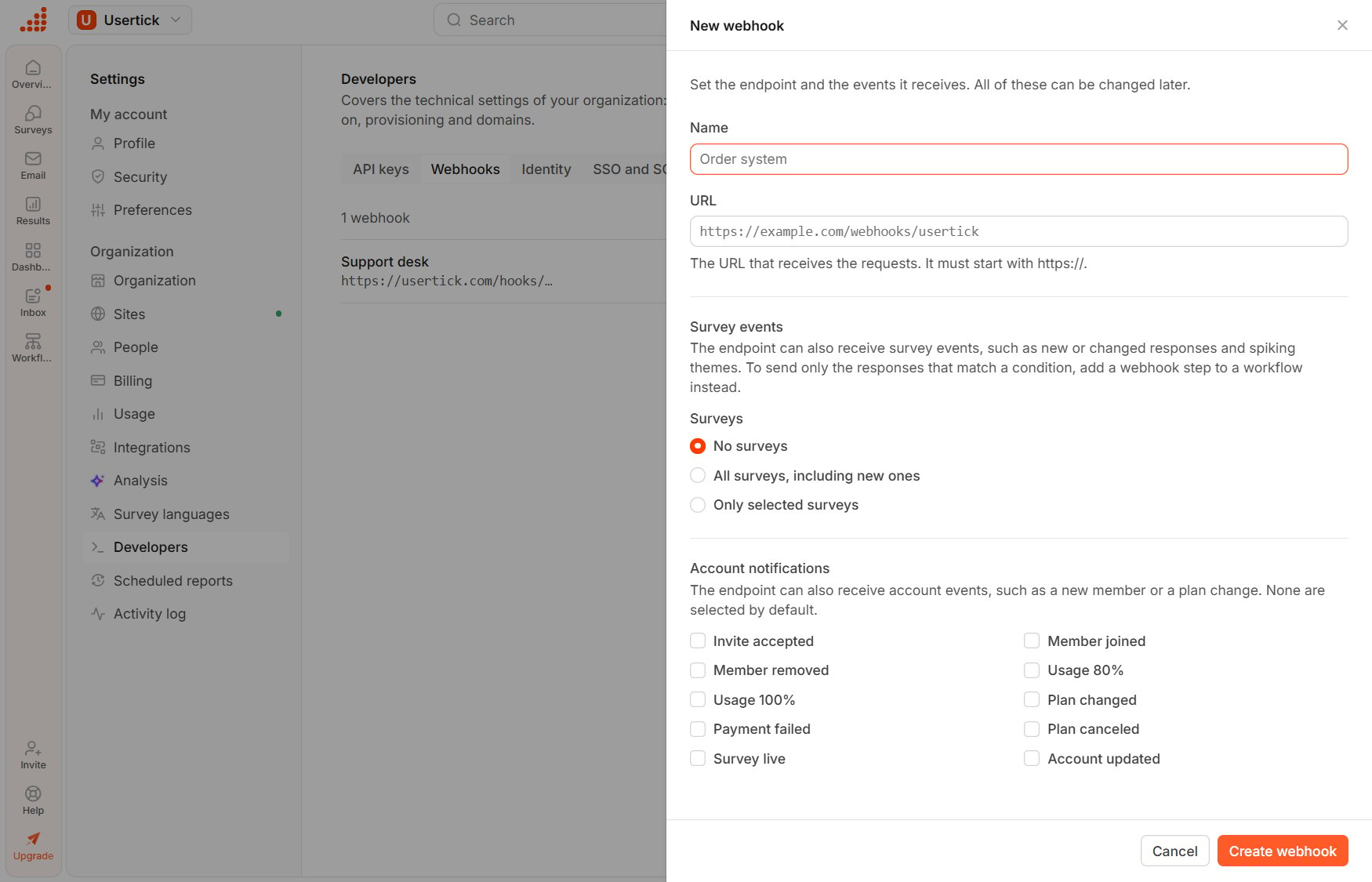
Settings → Developers → Webhooks → New webhook
Save the signing secret
Right after you create the webhook, Usertick shows the signing secret once. Copy it into your server’s configuration, then select I saved it. Your server uses the secret to confirm that each request came from Usertick. See Verify signatures.Send a test
Select the endpoint’s row to open it, then select Send test. Usertick sends aping event and shows your endpoint’s answer, such as “Test delivered. Your endpoint responded with 200 in 84 ms.” The ping also appears in the request list of your test address.
Receive a real response
When you answer one of the surveys, Usertick sends aresponse.created event whose data holds the response with its answers, its survey and who responded. See Events for the full body.
Your endpoint should answer with a 2xx status quickly and do its work afterward. Usertick retries failed deliveries, and after 20 failures in a row it stops sending and notifies the members who manage integrations. See Delivery and retries.
When your own server is ready, open the endpoint, select Settings and replace the URL.
Send only some responses
Only these responses in the endpoint’s survey events narrows what the endpoint receives by type, urgency and theme. To filter on answers, such as only detractors, use a workflow instead. Start from the Send responses to a webhook template and add a condition under Only if. See Send responses with a workflow.Check that it works
When you open the endpoint under Settings → Developers → Webhooks, the response’s delivery is listed as Delivered, and Show details shows the request body and your endpoint’s response. Your test address shows the same request, with the headerX-Usertick-Event: response.created.