

Before you start
- You created the dashboard, because only its creator can share it.
- Your role has the Manage dashboards and reports permission.
- Any plan works, and the people you share with must be members of your organization.
Share it with everyone
- Open the board and select Share to open Share this dashboard.
- Turn on the switch beside Everyone at your organization.
- Choose Can view or Can edit for Everyone at your organization.
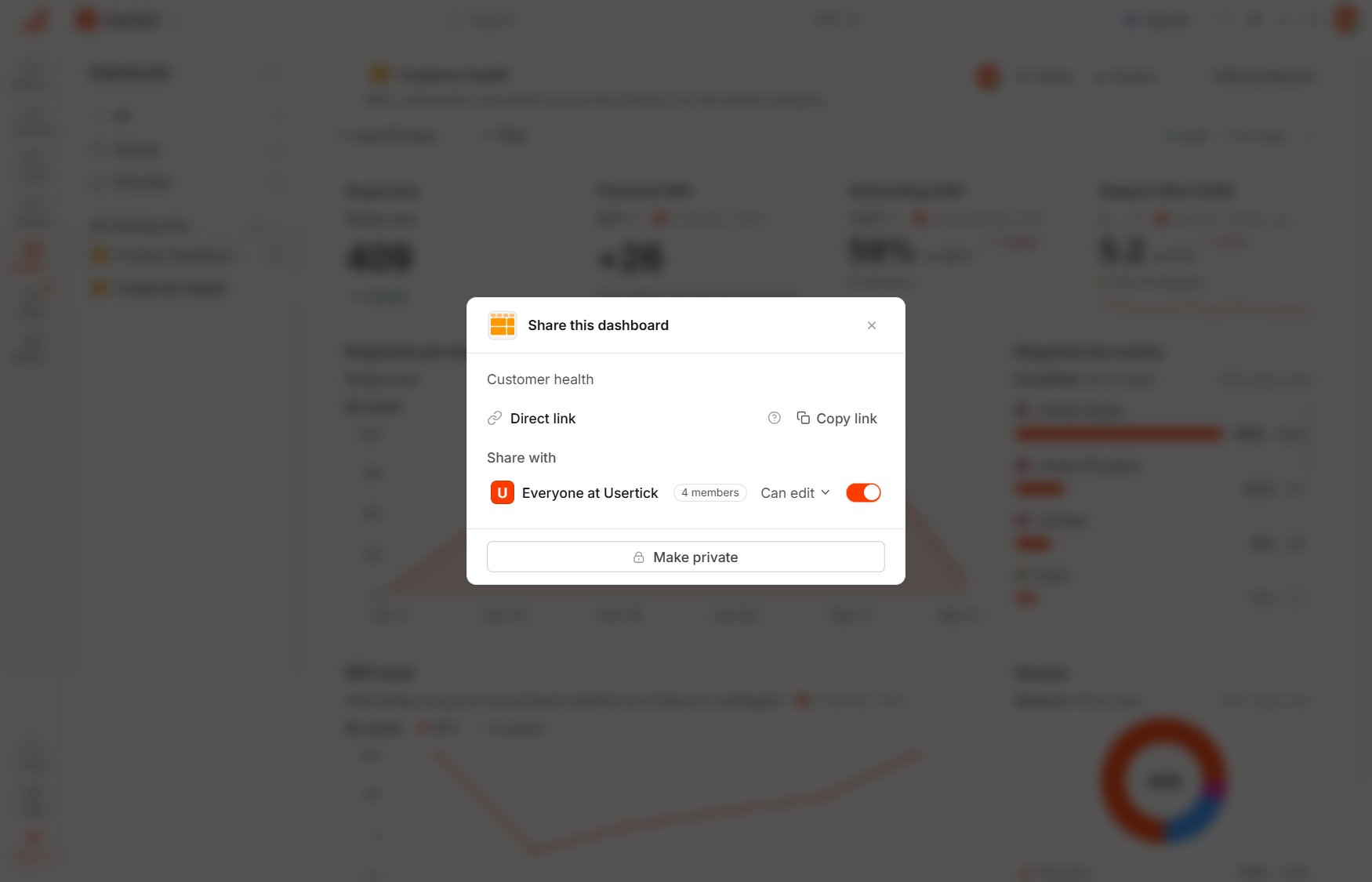
Share this dashboard
Share it with chosen people
Under Add people, search for a teammate and choose Can view or Can edit for them, then repeat for each person. While the organization has Can edit, everyone can already edit, so the dialog doesn’t offer Add people.Pin it and send the link
- To move the board to the top of the dashboard list for everyone, select More actions, then Pin.
- Copy link in the share dialog copies the board’s address, which opens only for the people the board is shared with.
What teammates see
- A board shared with the organization appears in their list under Shared.
- Teammates with Can view see the board marked View only, and Copy to my dashboards gives them their own version to change.
- Teammates with Can edit and the Manage dashboards and reports permission can change the board and publish it, one person at a time.
- Each person sets their own date range and filters, so their choices never change what you see.