Usertick doesn’t announce every new response by itself, but a workflow with a Notify teammates step can. When you finish this guide, the teammates you select are notified of each new response to one survey, in the bell at the top right and by email, and the notification opens the response in one click.

Before you start

  • You need a published survey, because each workflow belongs to one published survey.
  • Your role has the Manage workflows permission, which the Owner, Admin and Developer roles include.
  • Any plan works, because Notify teammates needs no connected tool and the Free plan allows 1 workflow per survey.
  • The teammates you notify have a role that opens the survey. Usertick doesn’t notify someone whose role doesn’t reach it.

Start a blank workflow

  1. Go to Workflows and select New workflow.
  2. Select Blank workflow, enter a Workflow name, such as “New NPS responses”, and select Create workflow.
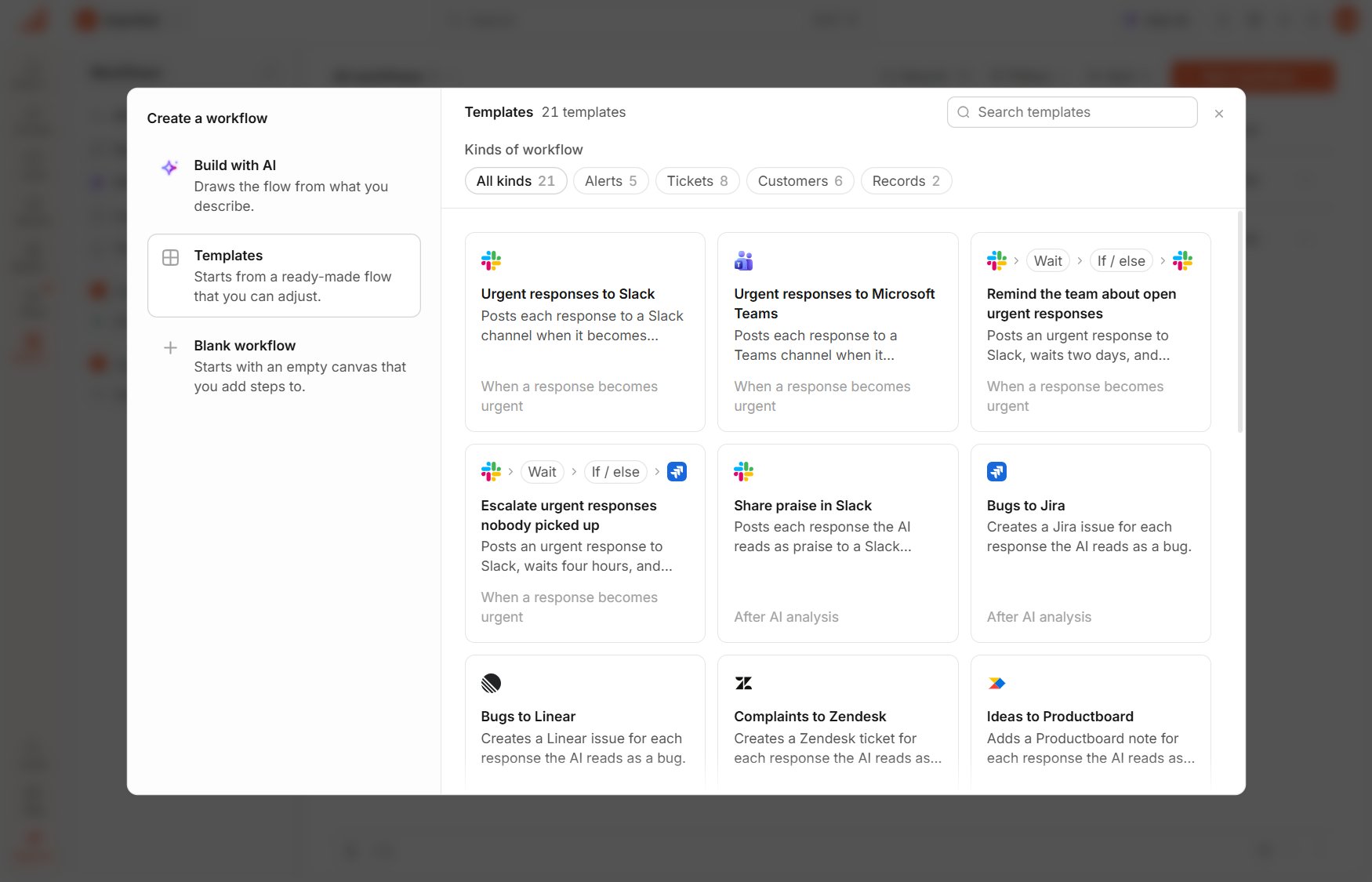
The Create a workflow window with Build with AI, Templates and Blank workflow on the left, and Templates open with Search templates, the Kinds of workflow chips and the template cards

Create a workflow

The workflow opens on the canvas with only its trigger.

Choose the survey and when it runs

  1. Select the trigger card to open its panel.
  2. Under Survey, select the survey.
  3. Under Starts, select When a response is submitted.
To hear only about some responses, select Add condition under Only if. For example, a condition on the NPS question’s NPS group with the value Detractor limits the workflow to unhappy customers. See Limit the responses.

Add the notification

  1. With the trigger selected, select Notify teammates under Connected tools in the step list on the left, and the step is added after the trigger.
  2. In the step’s panel, select the people under Teammates.
  3. Check the Title, which starts as “New feedback on” followed by the survey’s name, and the Message, which lists the answers. Insert field adds other details, such as the respondent’s email.

Test and publish

  1. Select Test run, then Run test. The test uses the survey’s latest response and sends real notifications to the teammates, with “[Test]” before the title.
  2. Select Publish workflow, and the first publish turns the workflow on.

What teammates receive

Each teammate receives the notification in the bell and, with the recommended settings, by email, and selecting the notification opens the response. Each person chooses where their notifications reach them under Settings → Preferences, in the Notifications group, where this type is called Workflow message, and can also turn on desktop notifications in the browser there. See Notifications.

Check that it works

After you answer the survey once, the teammates you selected see the notification in the bell, and the run appears in the workflow’s Activity. If no notification arrives, check that the workflow is On and that the response meets the conditions under Only if.
Last modified on November 15, 2026