

Before you start
- You need a published survey with an NPS question and some responses, because the template leaves out cards that no survey can fill yet. To start a survey, see Add an NPS survey to a Shopify store or Email a survey to a contact list.
- Your role has the Manage dashboards and reports permission.
- Any plan works. The Free plan includes 1 dashboard with up to 10 cards, which is enough for this board.
Create the board from the template
- Open Dashboards and select Create dashboard.
- Select Templates, find NPS tracker and select Use template.
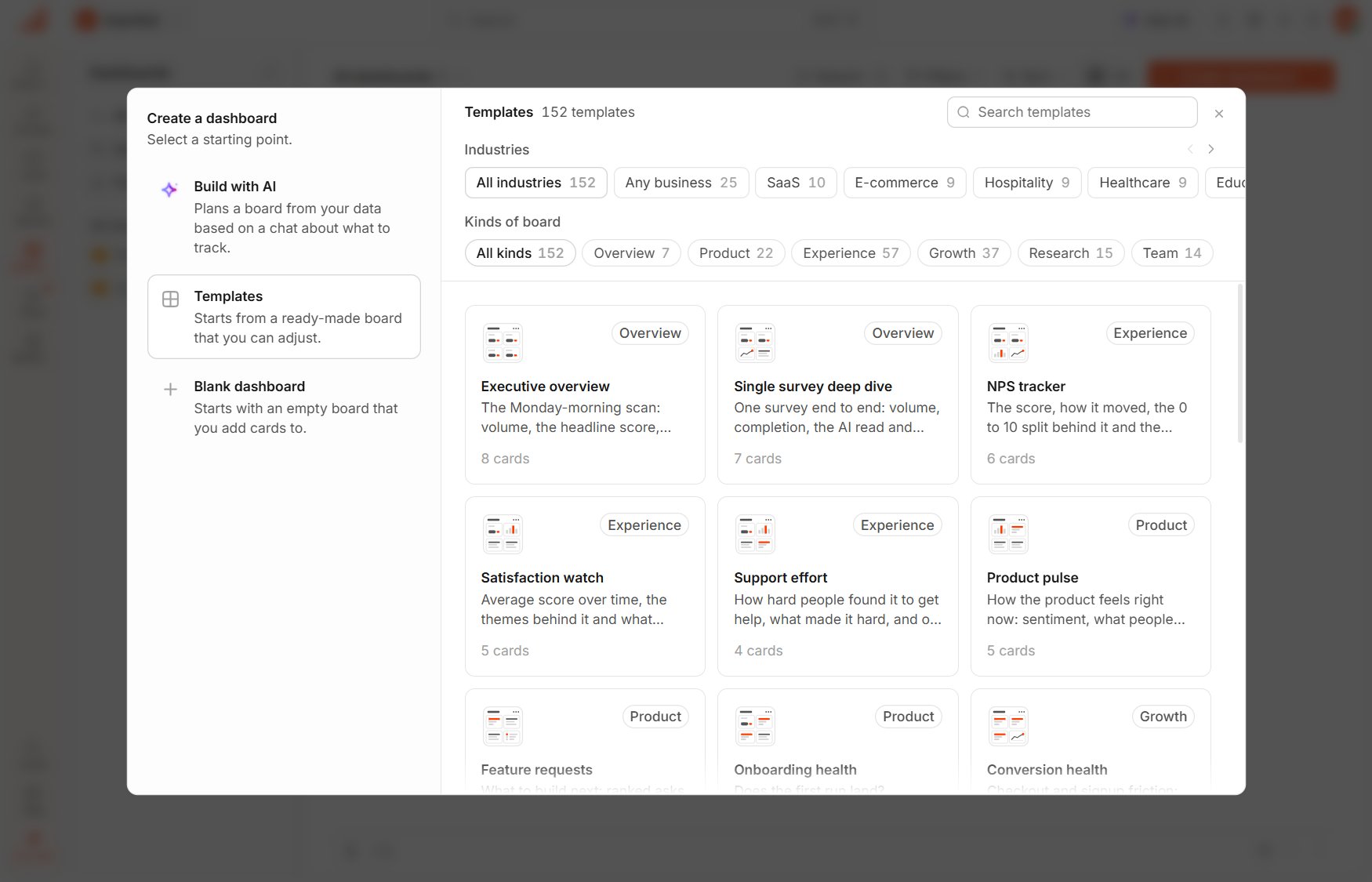
Create a dashboard
Add the NPS week by week
- Select Add card, then Score over time.
- Choose your survey and its NPS question.
- Under Data, select Weekly, then select Add to dashboard.
- Drag the card to where you want it, then select Publish dashboard.
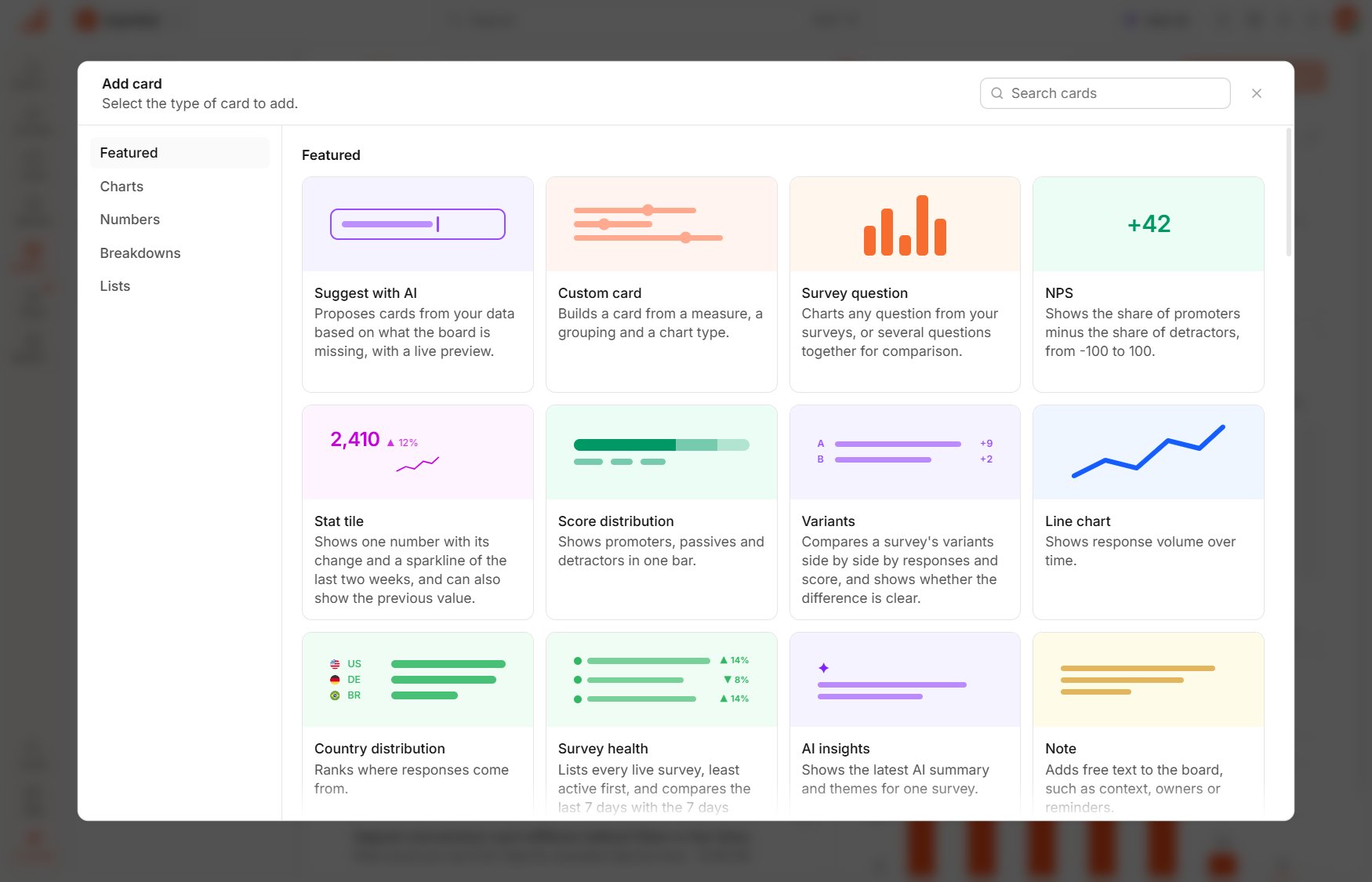
Add card
Read it every week
Date range, under the board’s name, sets the period that every card reads, and it shows Last 30 days until you change it.- To read the past week, choose Last 7 days. Cards with a change compare the week with the period before, and a score’s change reads in points, such as +15 pts.
- To see about 13 weeks on the weekly card, choose Last 90 days.