

Before you start
- Any plan works, since website surveys and the NPS template are on every plan and the Free plan includes 1 site.
- Your role has the Manage sites permission to add the store, and Manage surveys to create and publish the survey.
- You have a Shopify staff account that can edit your theme’s code.
Install Usertick in your theme
- In Usertick, go to Settings → Sites. If your store’s domain isn’t listed, select Add site, enter the Website address and select Add site.
- Select the site and select Copy on its code.
- In the Shopify admin, go to Online Store → Themes.
- On your theme, select … and then Edit code.
- Open
layout/theme.liquid, paste the code right before</head>and save. - Open your store in a browser, then go back to Settings → Sites.
Create the survey from the NPS template
- On the Surveys page, select Create survey, then Templates.
- Find Net Promoter Score (NPS) and select Preview.
- In the switch at the top of the preview, select Website, then select Use template.
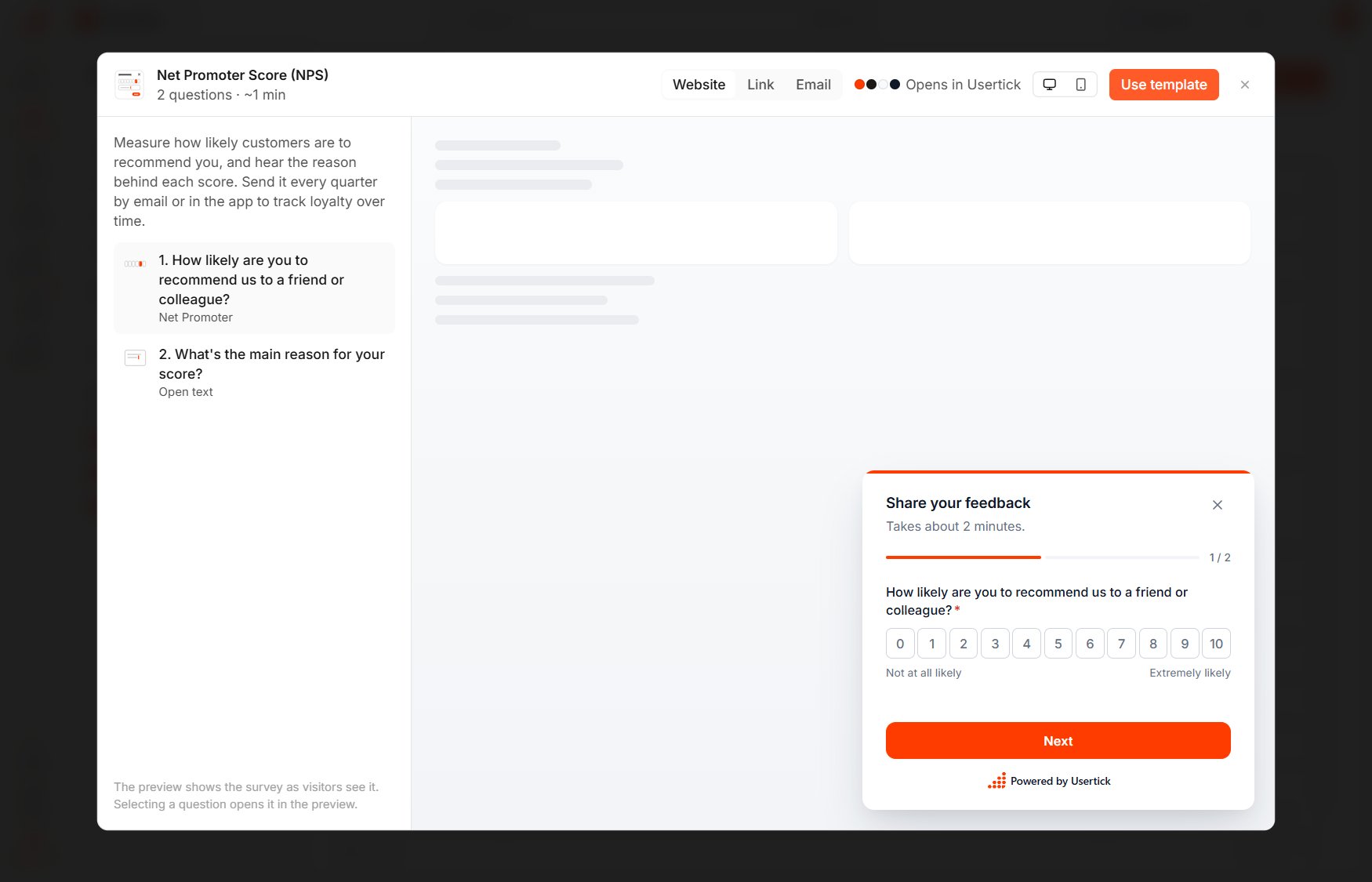
A template preview
Choose when it opens and who sees it
In the editor’s Targeting step:- On Triggers, change the template’s After a delay from 3 seconds to 15 seconds, so shoppers see the store before the question.
- On Display rules, under Where to show, select Add rule under Excluded pages and enter starts with
/cart, so the survey never interrupts a purchase. - Under Show frequency, set Repeat behavior to Every N days, the Cooldown duration to 90 and After submission to Show again after the cooldown.
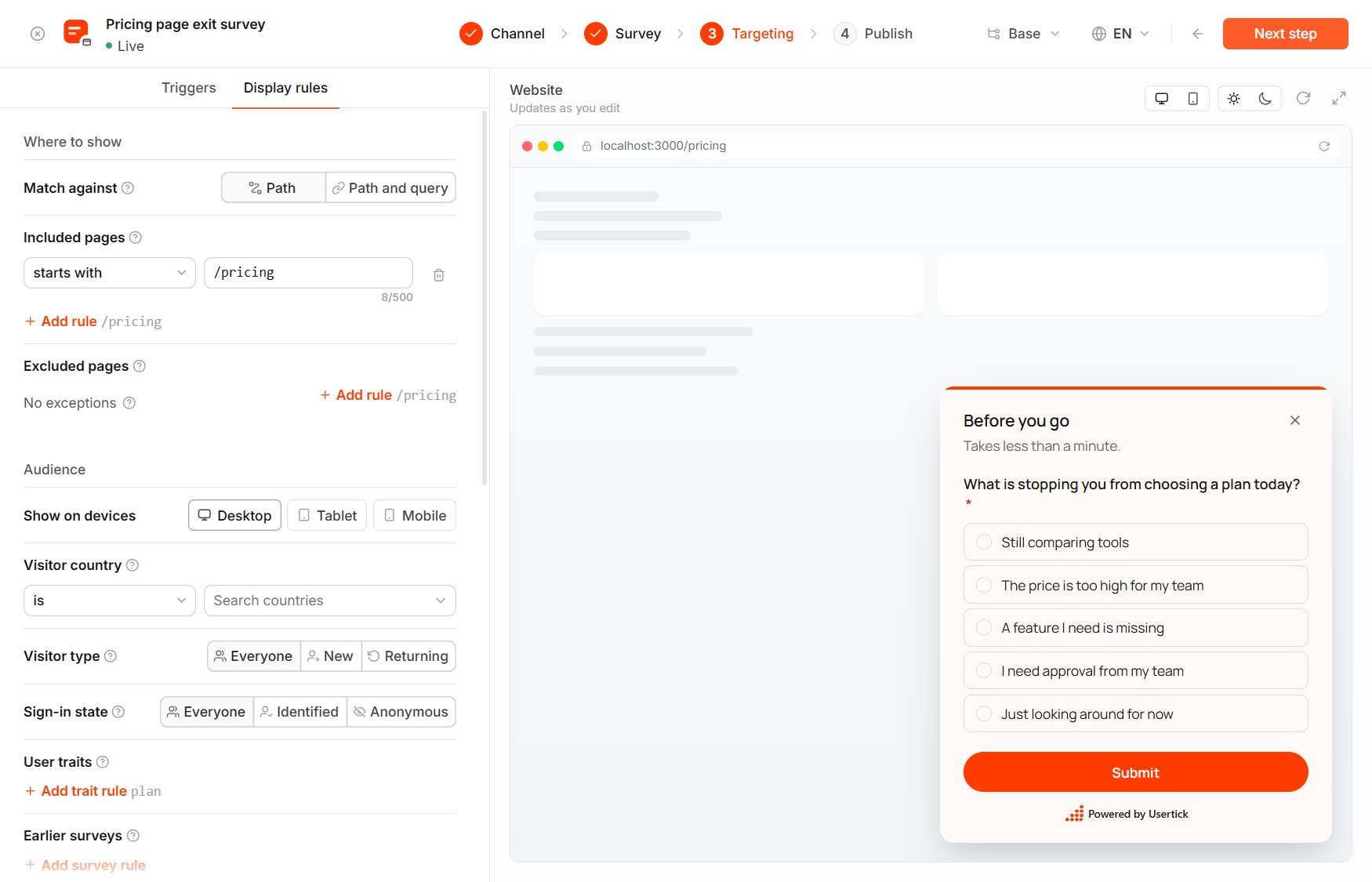
Targeting → Display rules
Publish on your store
In the Publish step, select your store under Where it runs, then select Publish. The survey starts showing to visitors within 5 minutes. If Usertick then asks Send responses to your tools?, select Not now, or see Get notified when a response arrives.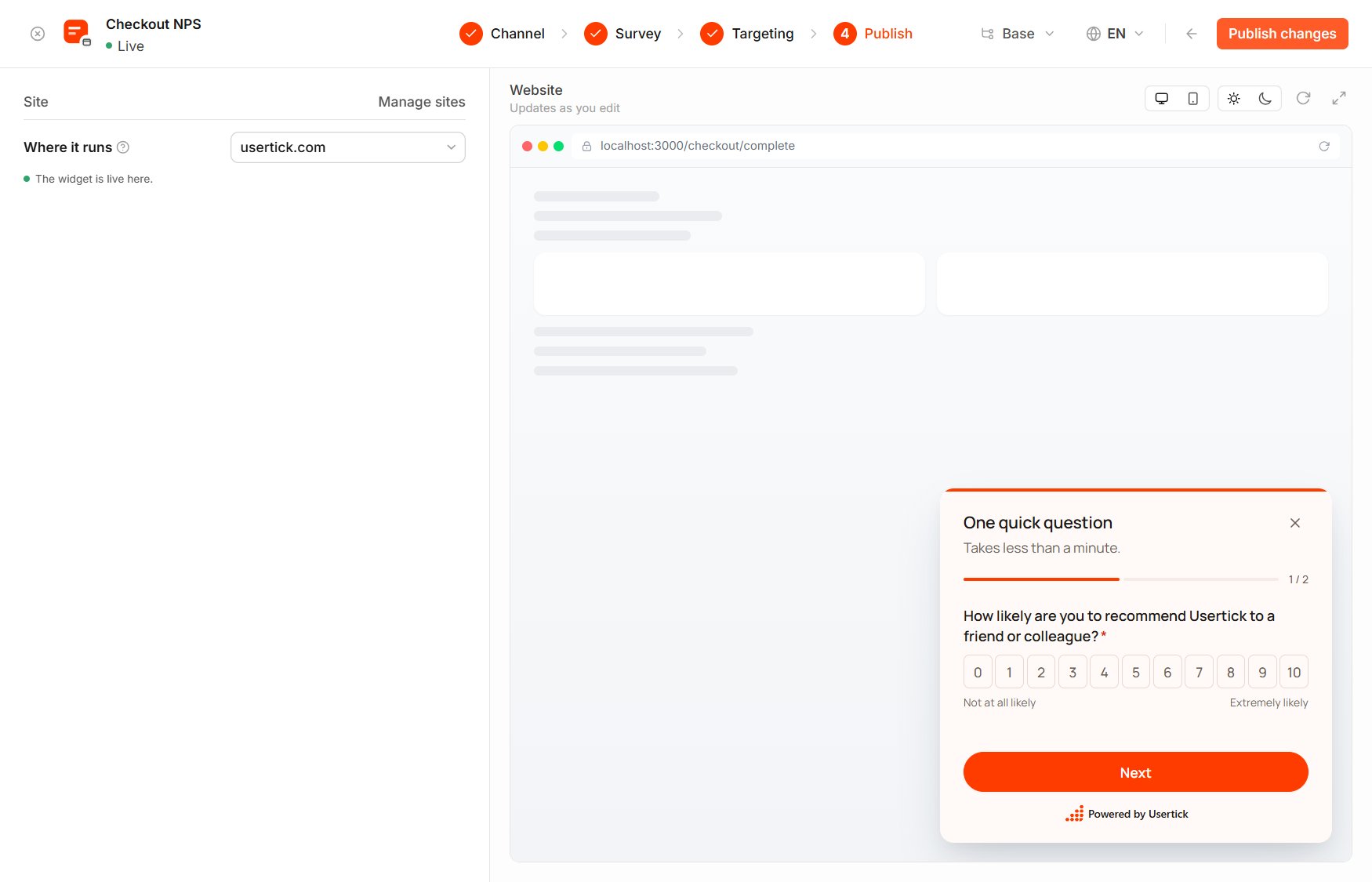
The Publish step of a website survey
Check that it works
- Wait up to 5 minutes after publishing, then open your store in a private browser window and stay on a page for 15 seconds, after which the survey opens.
- After you answer it, the response appears in Inbox and on the survey’s Results page.