

Before you start
- Your site has the install code and shows Connected under Settings → Sites. See Install Usertick.
- You have a CSS selector that matches only your button, such as
#feedback-buttonor[data-feedback]. To find one, right-click the button in your browser, select Inspect, then Copy selector. If the button has no stable ID or class, ask your developer to add one. - Your role has the Manage surveys permission.
- Starter and above include On element click, which counts as an advanced trigger, and the Free plan allows advanced triggers on 1 live survey at a time.
Create the survey
- On the Surveys page, select Create survey, then Templates.
- Select the Product feedback template, which asks what the feedback is about, how satisfied the visitor is and what happened, and offers an optional screenshot.
Open it from your button
In the editor’s Targeting step, on Triggers:- Delete the template’s After a delay condition with its trash icon, or the survey also opens 3 seconds after each page loads.
- Select Add condition, then On element click under Elements and forms.
- Enter your button’s selector, such as
#feedback-button, and the editor tells you if the selector isn’t valid.
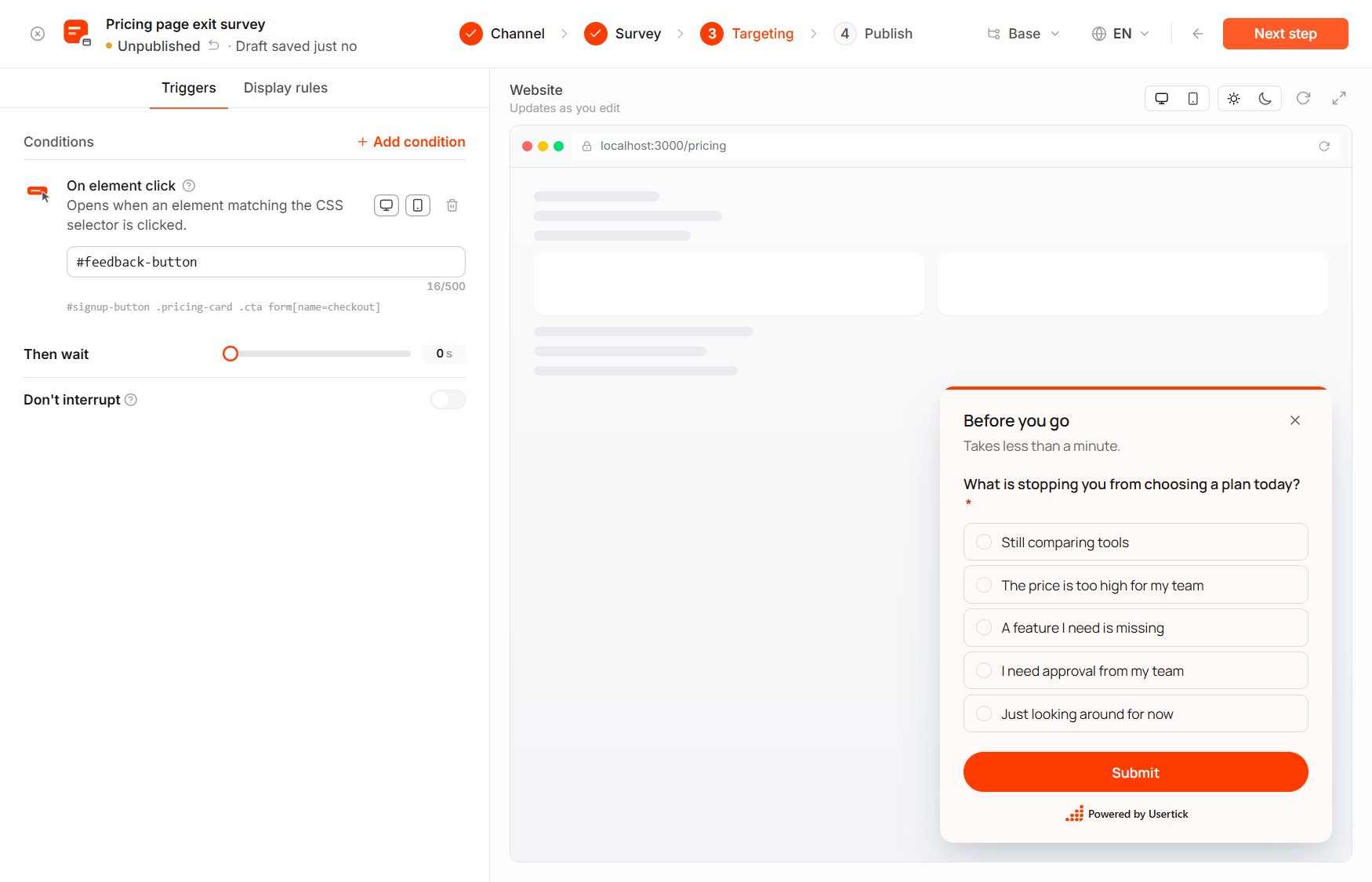
Targeting → Triggers with On element click
Let the button work every time
On Display rules, under Show frequency, set Repeat behavior to Every visit. With the default setting, Until answered, the button stops opening the survey once the visitor has answered, and after the visitor closes the survey, it waits until the next visit.Publish
In the Publish step, select the site under Where it runs, then select Publish. Visitors see the change within 5 minutes.How the button behaves
- A click opens the survey once per page view, and after the visitor closes it, the button opens it again on the next page or after a reload.
- A click on an icon or text inside the button counts, and so does a button that appears later, such as one in a menu that opens.
- Page rules, devices and audience still apply, so the button opens the survey only where those rules allow it.
Usertick.trigger("feedback_clicked") in the button’s click handler and use a Custom event condition with the same name. See Custom events.
Check that it works
- Open a page of your site in a private browser window and select your button, and the survey opens.
- After you close the survey and open another page, select the button again, and the survey opens again.
- After you answer it, the response appears in Inbox.