

Before you start
- Your site has the install code and shows Connected under Settings → Sites. See Install Usertick.
- Your role has the Manage surveys permission.
- Any plan works, since Exit intent and every rule in this guide are on every plan.
Create the survey
- On the Surveys page, select Create survey, then Templates.
- Search for “exit” and select the Exit intent template.
Open it on exit intent
In the editor’s Targeting step, on Triggers:- Delete the template’s After a delay condition with its trash icon, because it opens the survey 3 seconds after the page loads, long before anyone leaves.
- Select Add condition, then Exit intent under Leaving and frustration, which has no options to fill in.
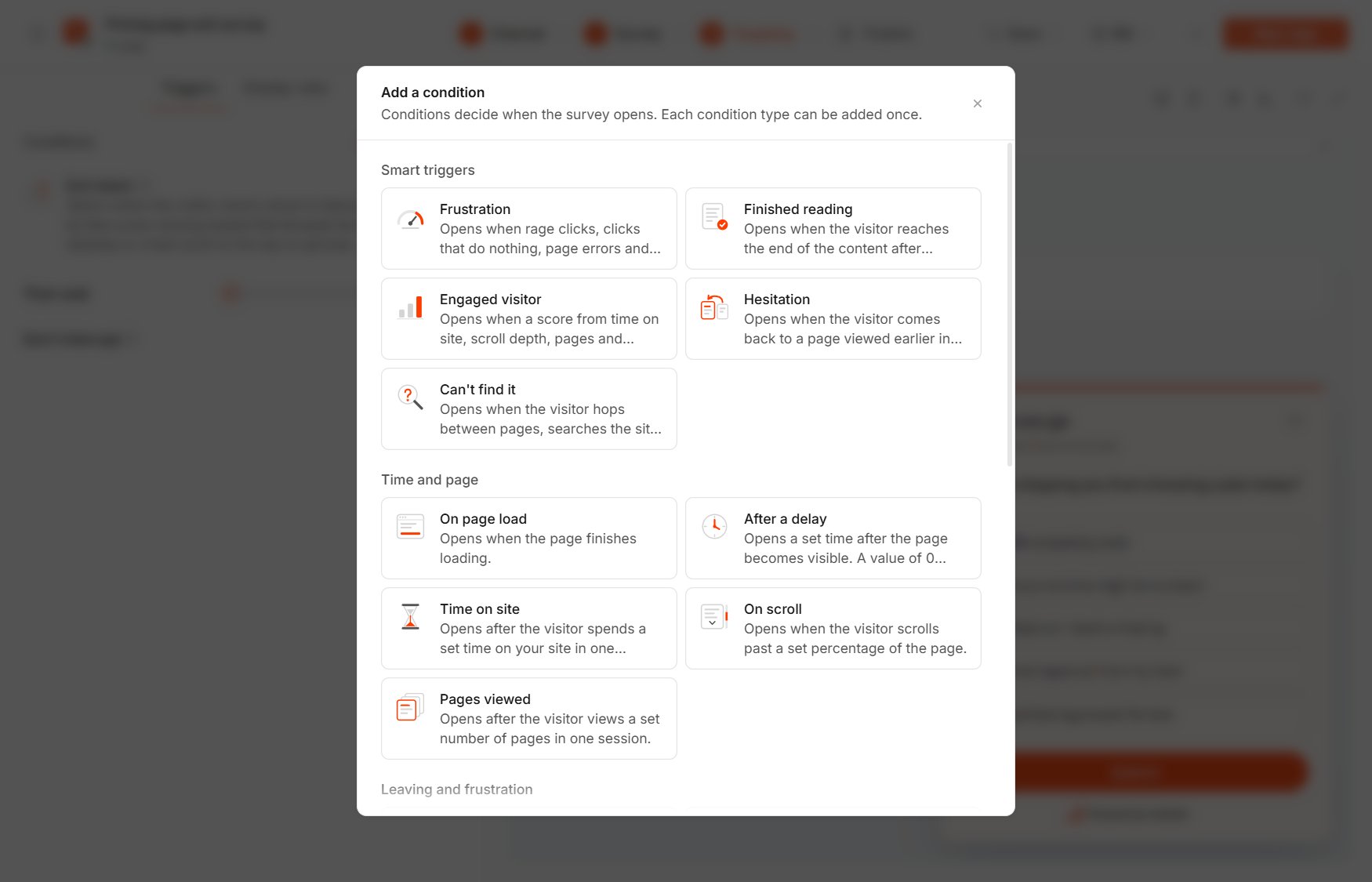
Add a condition
Limit it to your key pages and new visitors
On Display rules:- Under Where to show, select Add rule under Included pages and enter a page that matters, such as starts with
/pricingor is exactly/signup, adding one rule for each page. - Under Audience, set Visitor type to New, so customers who come back aren’t asked.
- Under Show frequency, set Repeat behavior to Once.
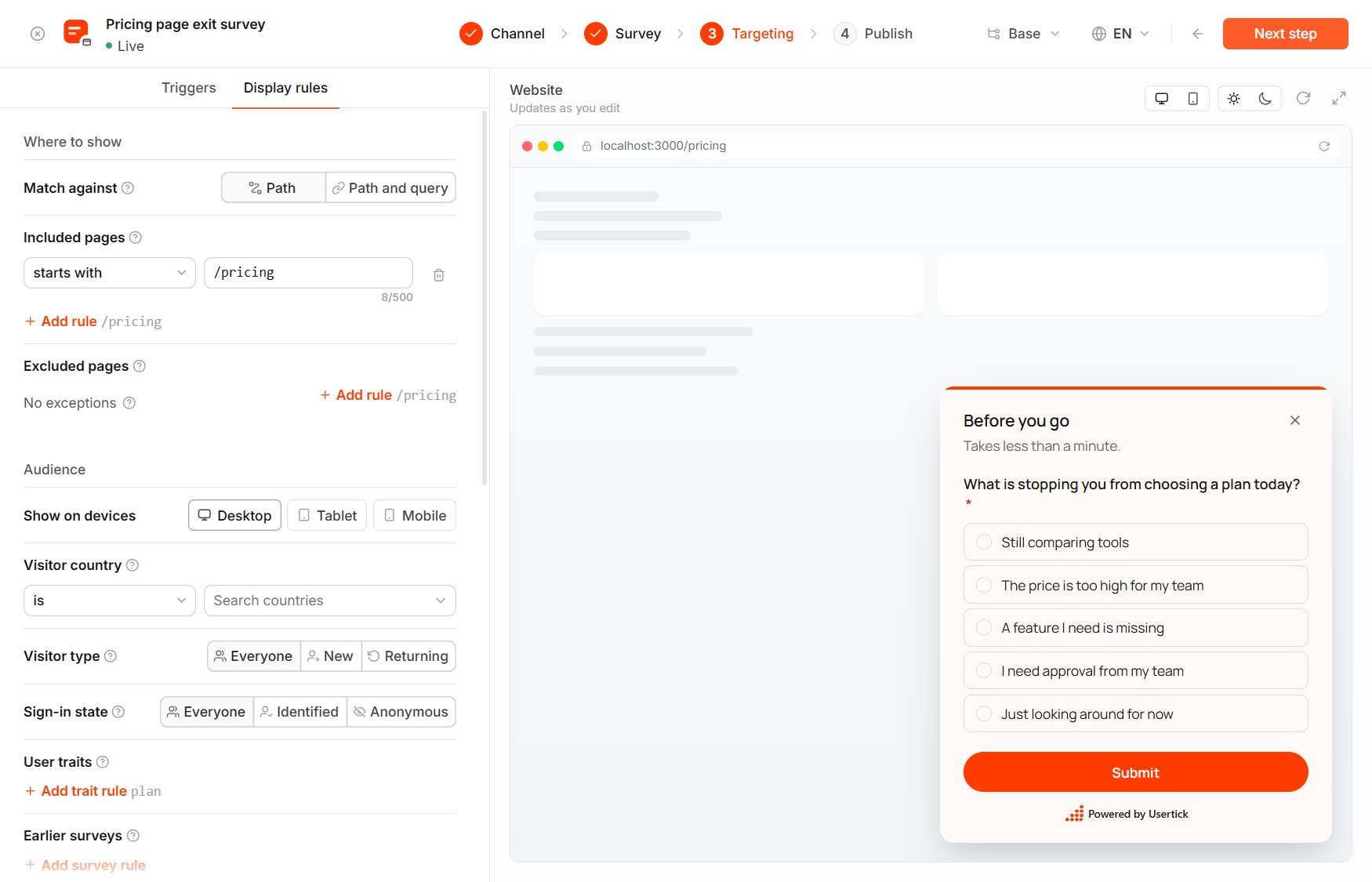
Targeting → Display rules
Publish
In the Publish step, select the site under Where it runs, then select Publish. The survey starts showing to visitors within 5 minutes.Check that it works
- Open one of the included pages in a private browser window, which counts as a new visitor.
- On a computer, move the cursor up past the top of the page toward the tabs, and the survey opens.
- After you answer it, the response appears in Inbox, and the survey’s Results page counts each reason.