

Add a question
- Under the list, select New question.
- In Select a question type, select a type under Scale, Choice, Text or Custom. Each type shows a sample. See Question types.
- Write the question text in the form that opens.
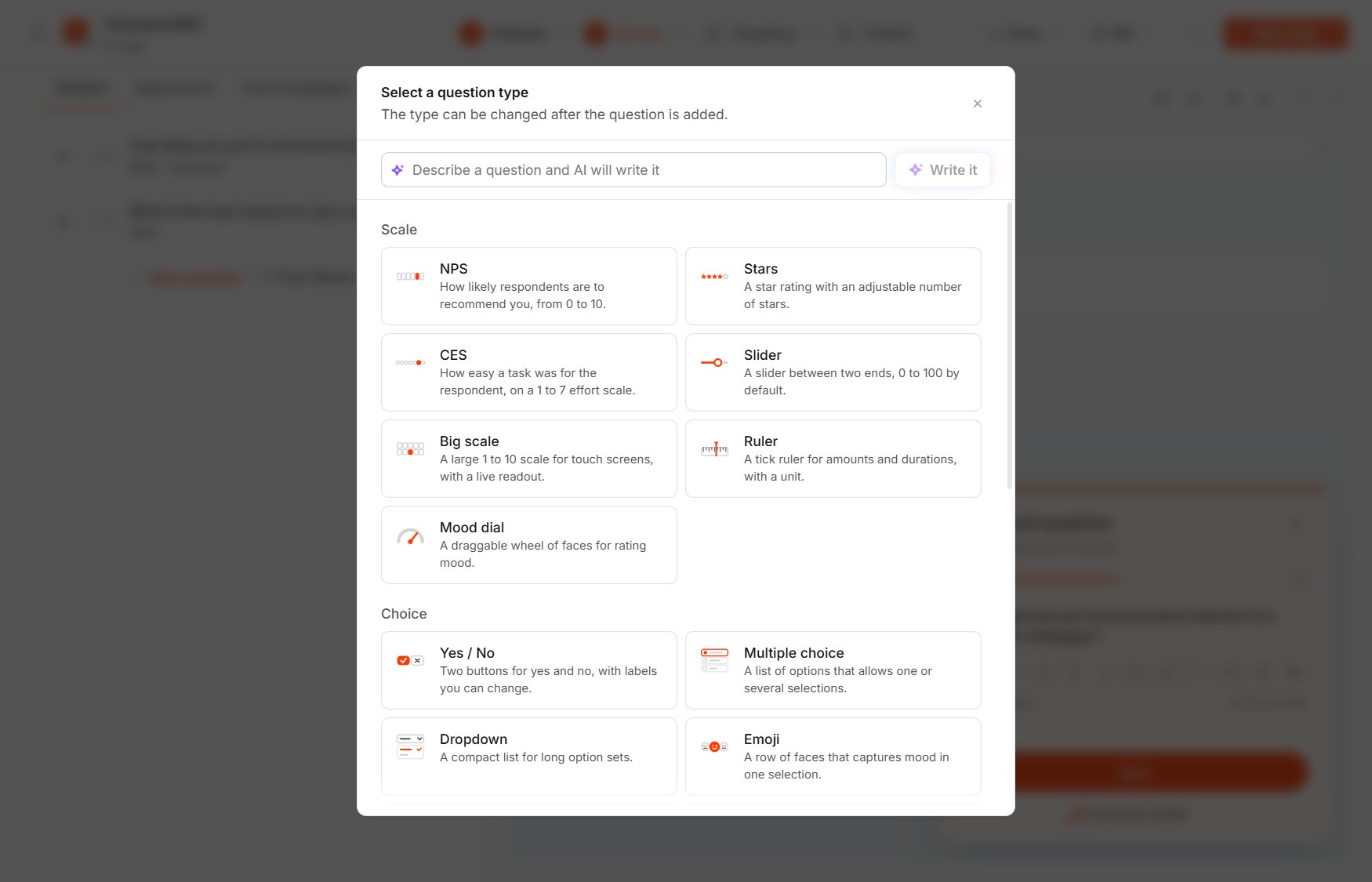
Select a question type
Add questions from the library
From library opens the Question library of ready-made questions, grouped by industry in the list on the left and by topic within each industry. You can search with Search questions and narrow the list by answer type with Scores, Choices, Numbers, Open text or Details at the top. Select one or more questions, then select Add selected, and you can edit each question after you add it. The library is translated into the 14 languages Usertick ships, and in a language your organization added, it appears in English.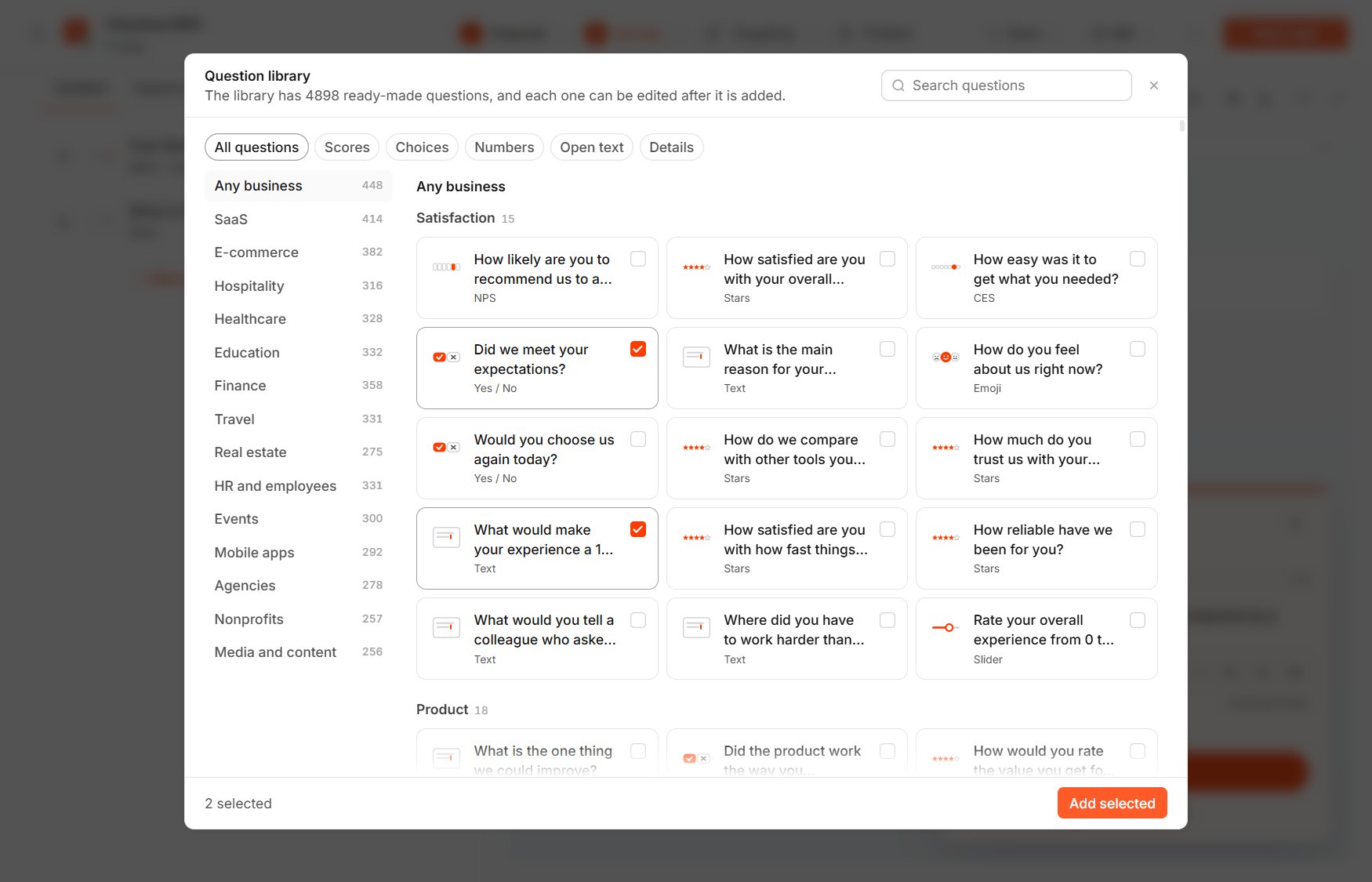
Question library
Edit a question
Every question has these settings, followed by the settings of its type:- Question text holds the question itself, and Add introduction adds a short text shown before it.
- Add media places an image or a video from the media library, which you can adjust with Media position (Above question or Below question), Media size, Media alignment and Alt text for screen readers.
- Required keeps the respondent from moving on without answering.
- Time limit gives the question a countdown, as described below.
- Branching by answer holds the rules that send respondents to another question. See Logic and branching.
Arrange questions
- Reorder questions by dragging them in the list, or focus a question and use the up and down arrow keys.
- Each question’s menu holds Duplicate, Change question type and Delete.
Put questions on one page
In the Step by step layout, each question has its own page by default. Hover between two questions in the list and select Put on one page to show them together, or Split the page here to separate them again. The list labels each group Page 1, Page 2 and so on. In the Chat layout, each question always appears alone.Set a time limit
Time limit gives a question a countdown, which respondents see as a ring next to the close button. A timed question always shows on its own page.- Seconds can be set from 5 to 600.
- Under When time runs out, Next question moves on, and Send answers submits the answers given so far.
- Allow going back, called Allow changing the answer in a chat survey, lets respondents return to the question while time remains.
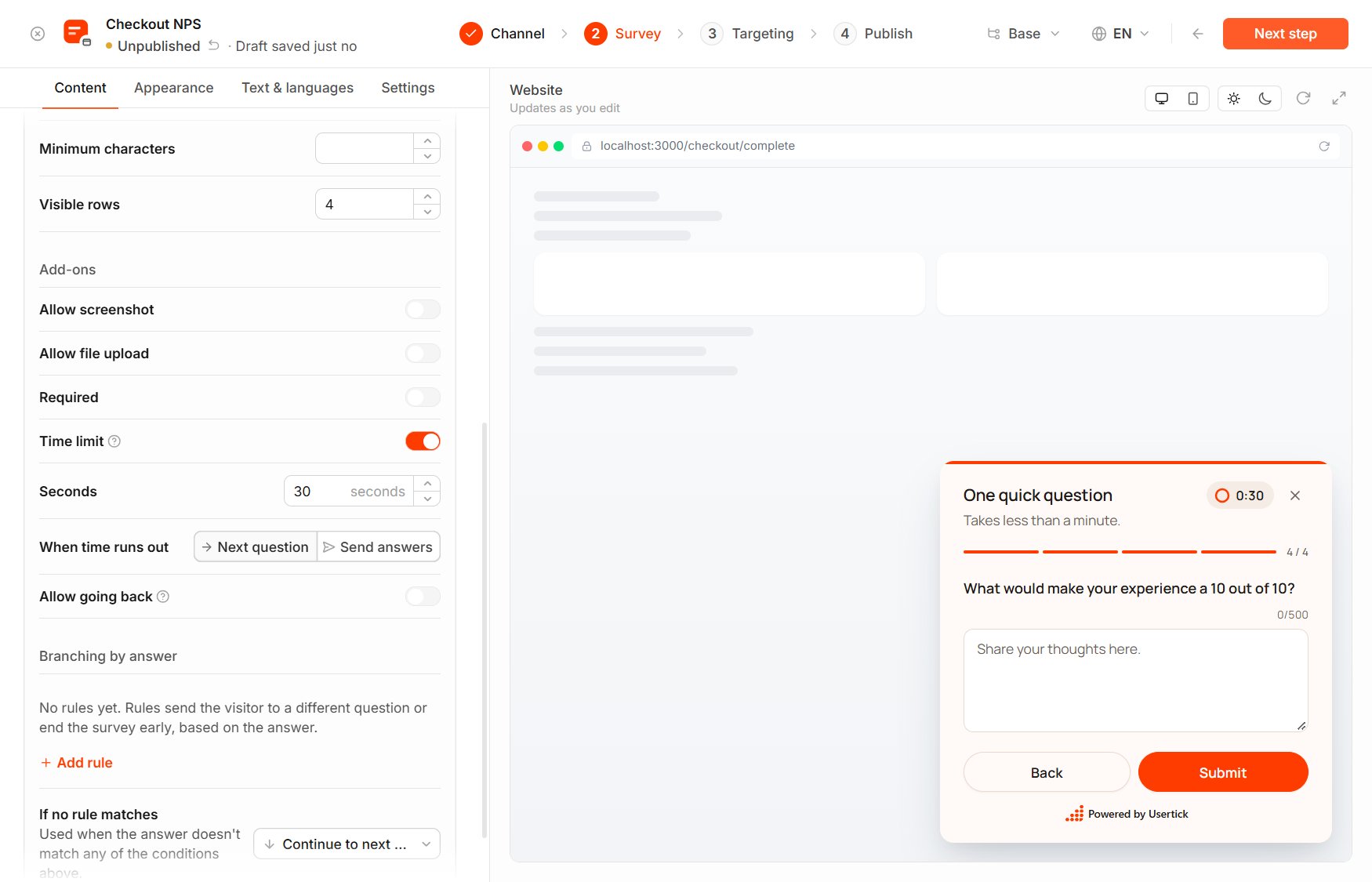
A question's time limit
Improve the wording with AI
- Suggest, beside an empty question field, opens AI suggestions with questions written for the type and for what you already set on the question, such as its answer options, range and unit. Describe what you want to ask to steer them, then select one. While the question still has its starting options, rows or columns, the suggestion you select fills them in too.
- Improve with AI, Neutralize with AI, Shorten with AI and Rewrite with AI appear beside a field with text. The new wording still fits the question’s answer options, rows, unit and range. Review the result, then select Apply or Cancel.
- On the Starter plan and above, the editor also checks the wording as you type and shows This wording may steer the answer under a question that could bias respondents.
- Test as variant, under a suggestion, creates a variant that shows the new wording to a share of respondents, so you can compare both wordings. See Variants.
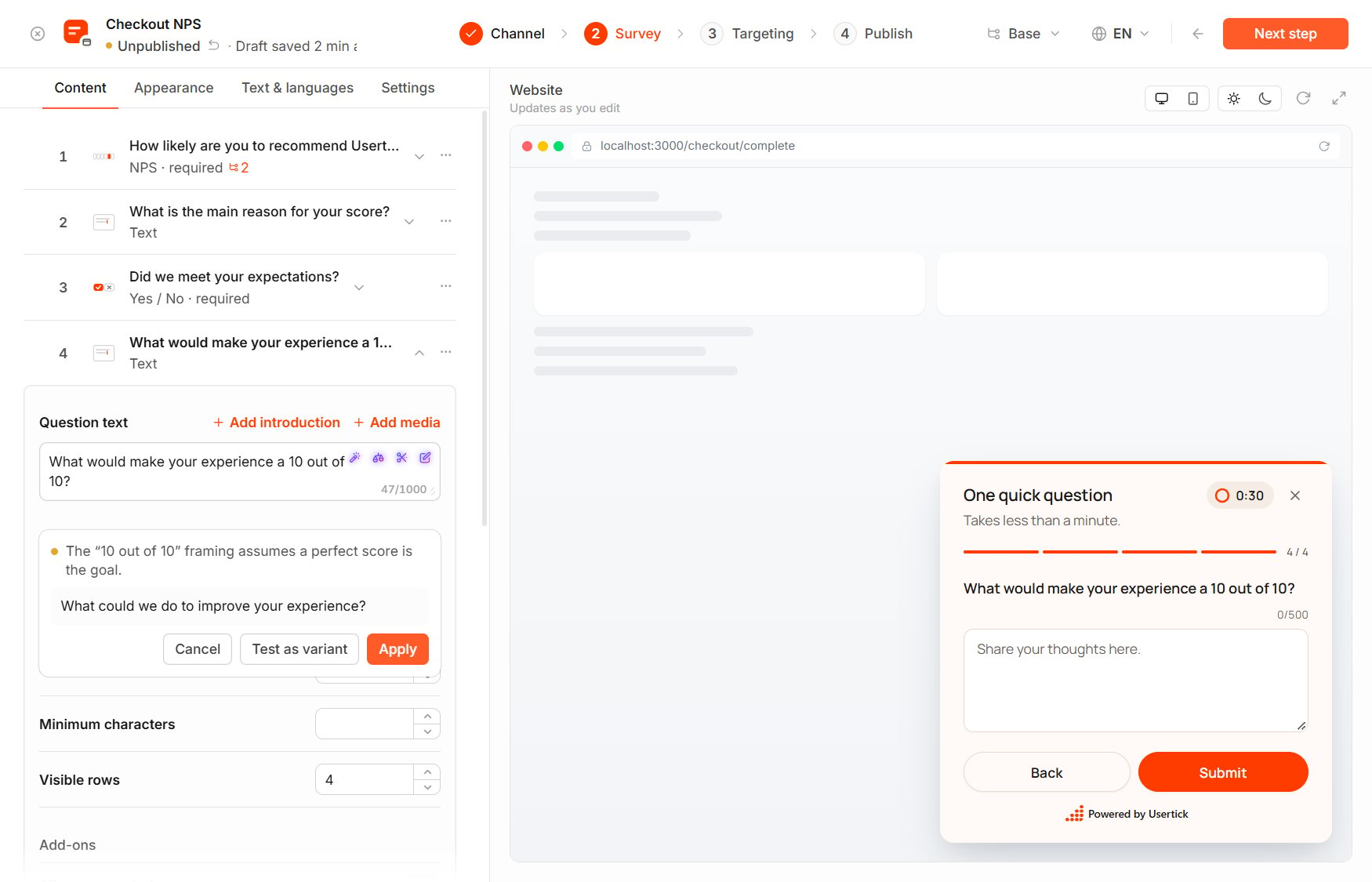
An AI result under a question
Plan limits
When a survey reaches the question limit, From library stops adding questions, Select a question type offers only message screens, and a line under the buttons explains why. When it reaches the file question limit, the picker locks the file, screenshot and signature types. On Free, a text question with Allow screenshot or Allow file upload turned on counts as the survey’s file question.