

Survey statuses
Each survey has one of these statuses:- Draft surveys are still being built, and Usertick never shows them to anyone.
- A Live survey runs on its channel and collects responses.
- When a survey is Paused, it stops showing right away. Its responses are kept, and Set live resumes it.
- An Archived survey stops running, but its results stay readable. Archived surveys don’t count toward the plan’s survey limit.
Find a survey
- Status views at the top of the left panel (All surveys, Live, Paused, Drafts and Archived) each show their count, and All surveys leaves archived surveys out.
- Search finds a survey when you type part of its name and press Enter, and the ? beside the box lists the search syntax.
- Filters narrow the list by Site, Folder and Status.
- Sort orders the list by Recently updated, Newest created, By name, Channel, Site, Questions, Responses, Last response or Status.
- The View toggle beside Sort switches between cards and a list with columns.
The line under the page heading counts the responses of the last 7 days across your live surveys, and Most answered in the last 7 days in the left panel opens the responses of your busiest surveys. On a plan with a survey limit, the bottom of the panel shows how many surveys are in use, such as “2 of 3 surveys”.
Act on a survey
Selecting a survey opens it in the editor, or opens its results if your role can’t edit surveys. The ⋯ menu on each row holds the other actions and shows only the ones that apply to the survey’s status and your role.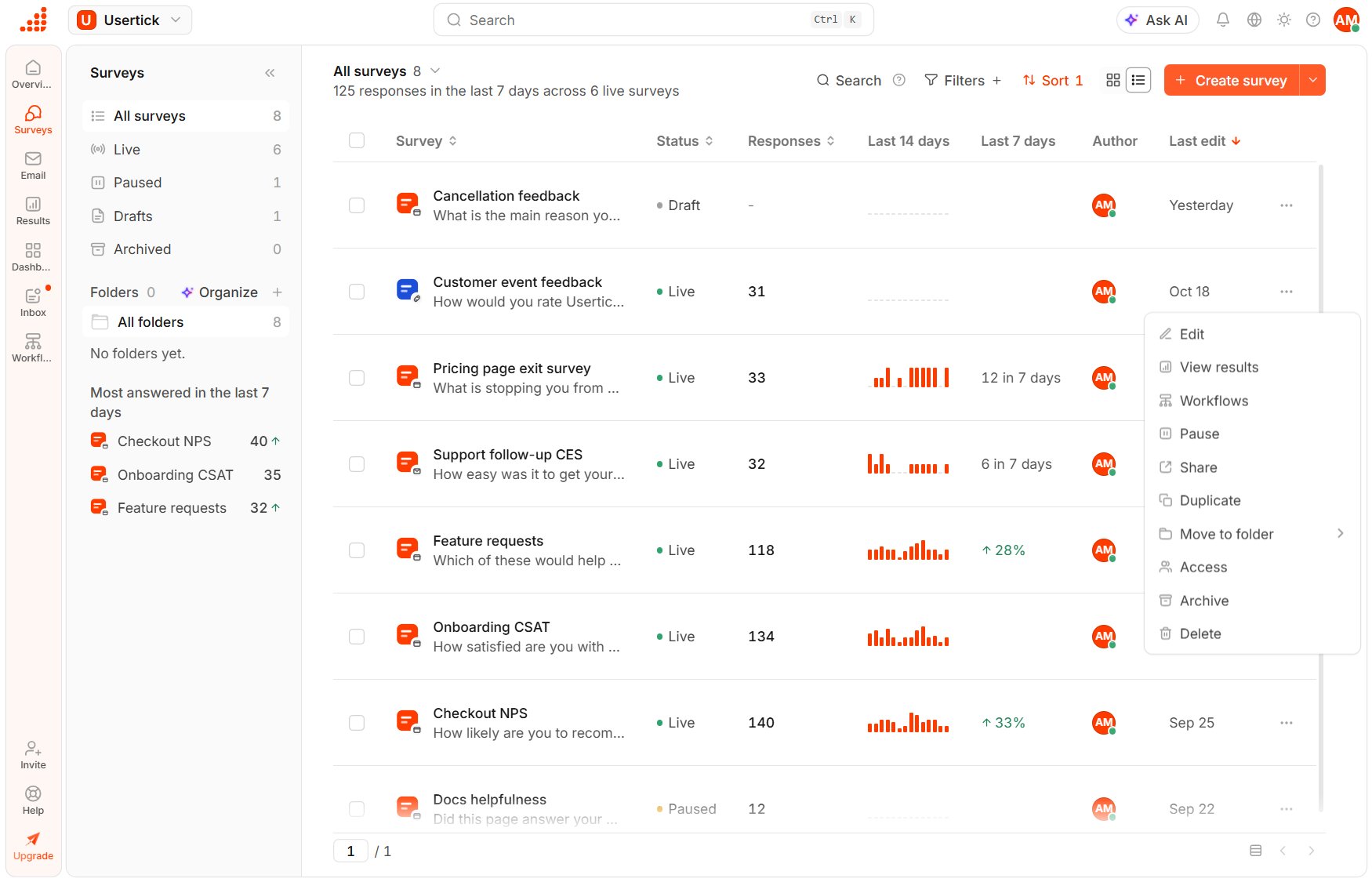
The survey menu
- Edit opens the survey in the editor.
- View results takes you to the survey’s Results.
- Workflows lists the survey’s workflows and appears for live and paused surveys.
- Publish opens a draft in the editor, where you publish it.
- Pause stops a live survey, and Set live resumes a paused one. If the survey has unpublished edits, Set live asks first, because it resumes the published version.
- Restore brings an archived survey back as a draft, except while your organization is at its survey limit.
- Send survey sends an email survey, and View sends lists its sends. See Email surveys.
- Share shows the link and QR code of a link or email survey. See Link surveys.
- Duplicate creates a draft copy of the survey, named after it with “copy” added.
- With Move to folder, you can file the survey in a folder or remove it from its folder. To file it in a new folder, type the folder’s name and select Create folder.
- Access lets you choose which roles with selected surveys can open the survey. See Survey access.
- Archive stops the survey and keeps its results.
- Delete removes the survey and its responses. See Delete a survey.
Organize surveys in folders
Folders group your surveys in the left panel, and each survey can be in one folder at most. Selecting a folder shows only its surveys, and a survey you create while a folder is open is filed in that folder.- Under Folders, select +, the Create folder button.
- Enter a Name, then choose an Icon and a Color.
- Select Create folder.
Organize with AI
Organize beside Folders opens Organize with AI, which proposes a folder plan for your surveys. It asks which surveys to cover (Not in a folder yet, All surveys or Select surveys), how to group them (such as Topic, Customer journey, Survey type or Channel), how detailed the folders should be, the language of new folder names, how many folders to use and whether it can suggest new folders. Before you select Apply plan, you can rename new folders, move a survey to another folder in the plan or leave a survey out. You can also ask for changes in the message box, and no survey moves until you apply the plan.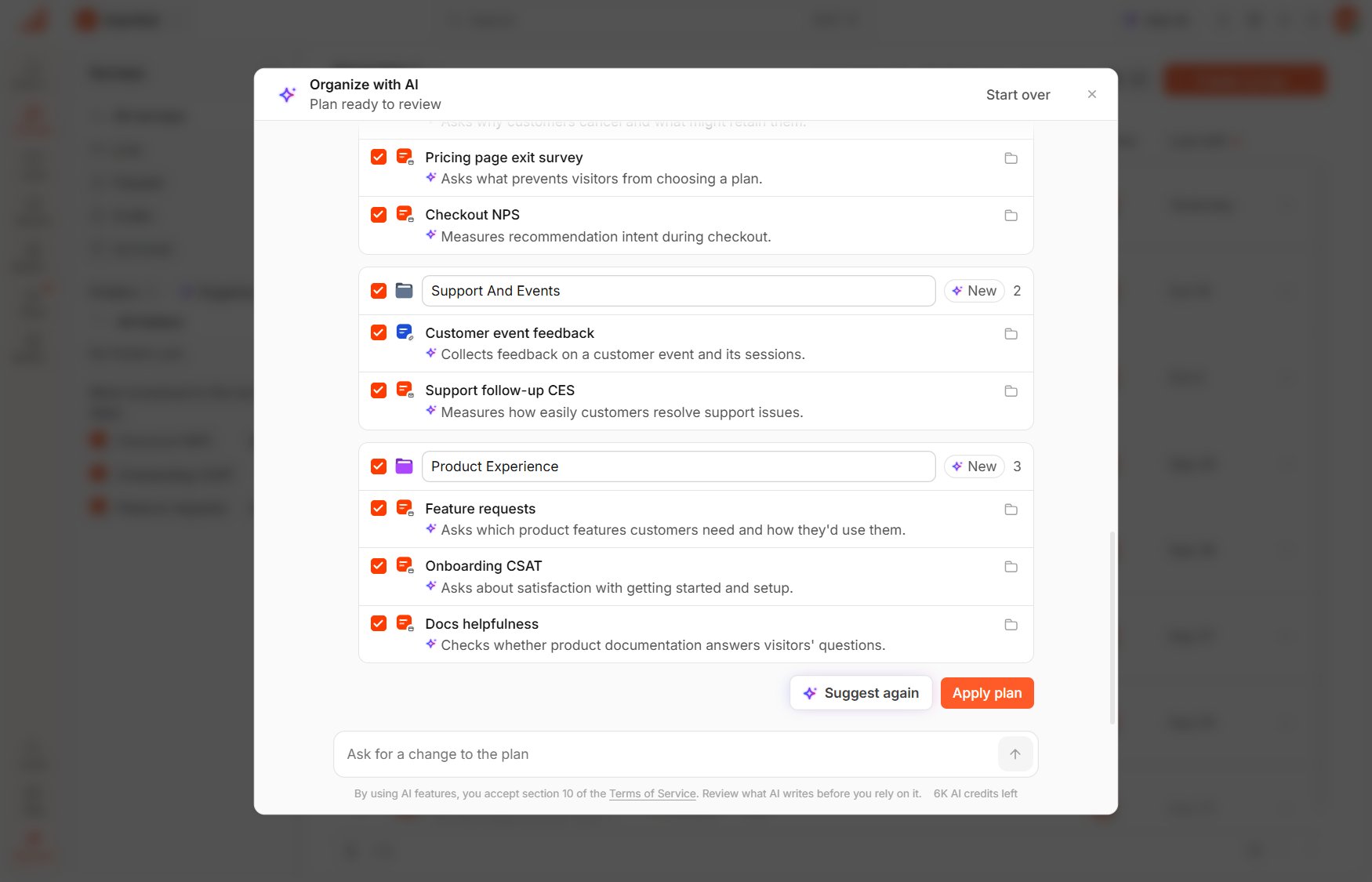
Organize with AI
Change several surveys at once
Select the checkbox on each survey you want to change, or select Select all, and the bar above the list offers these actions:- Move to folder files the selected surveys in an existing folder, or in a new one when you type its name and select Create folder.
- Remove from this folder appears while a folder is open.
- Archive archives the selected surveys.
- Delete deletes them once you confirm by typing the number of surveys, such as “3 surveys”. When you selected one survey, the dialog names it and you type its name instead, as you would from its own menu.