

Create an account
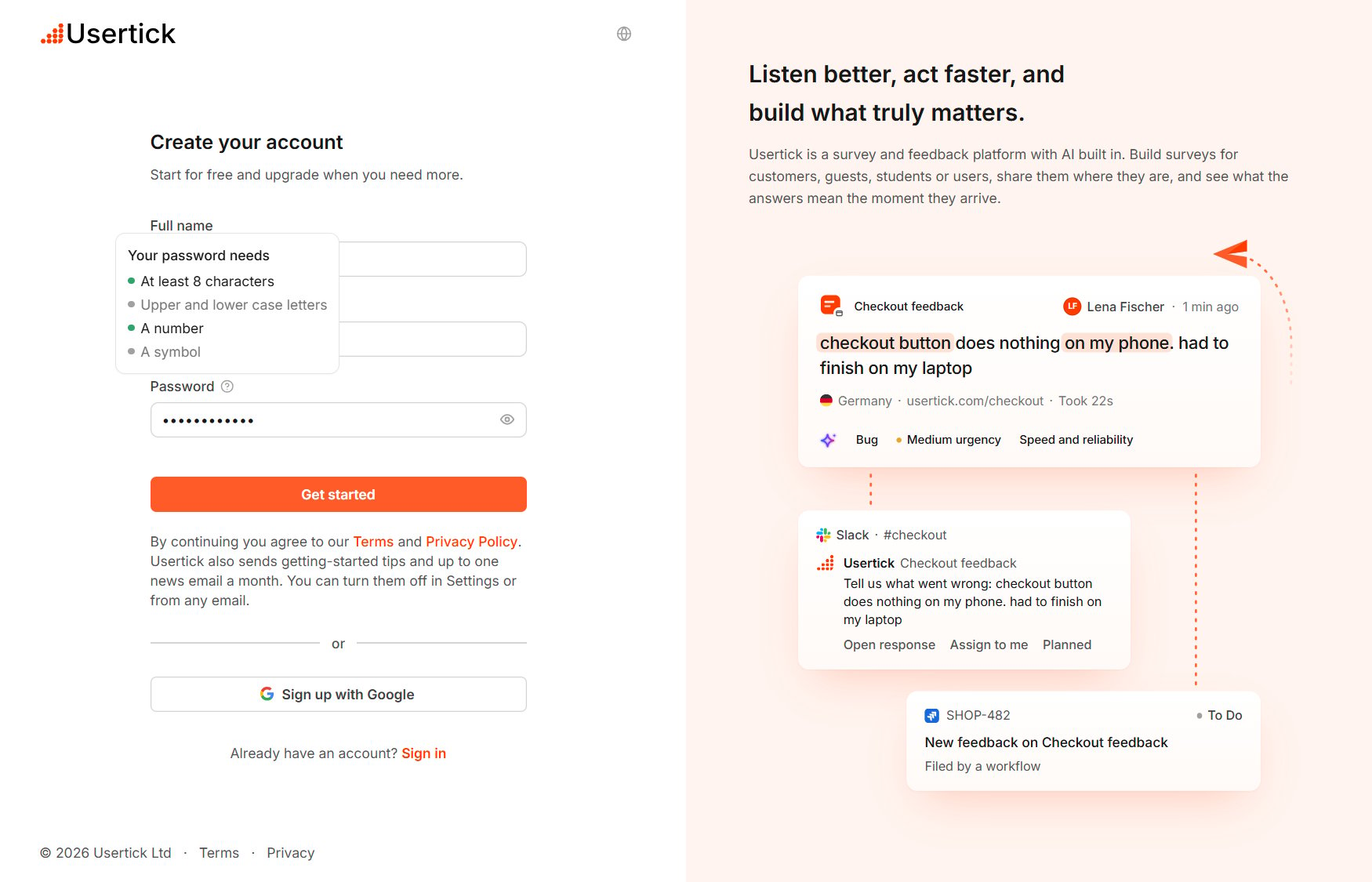
Create your account
1
Open the sign-up page
On the sign-in page, select Sign up.
2
Enter your details
Enter your Full name, Email and a Password, then select Get started. To use your Google account instead, select Sign up with Google and skip the next step.
3
Confirm your email
On Check your email, enter the 6-digit code Usertick sent and select Confirm email.
- Usertick doesn’t accept addresses from disposable email services, with the form or with Google. Use your work or personal address.
- A security check runs when you send the form. If it doesn’t load, check your connection or allow the page in your content blocker, then try again.
- If the address already has an account, the form links to Sign in and to setting a new password.
- Usertick also sends getting-started tips and up to one news email a month. To stop them, turn off Product tips and news under Settings → Preferences, or use the link in any of those emails.
Confirmation codes
Each code works for 15 minutes, and the screen counts down the time left. When you paste the code into the first box, it fills every box. If the code doesn’t arrive, Send a new code becomes available 60 seconds after the last one was sent, and the new code replaces the old one. If you leave before confirming, you can sign in later with your email and password, and Usertick sends a fresh code and opens Check your email again.Sign in
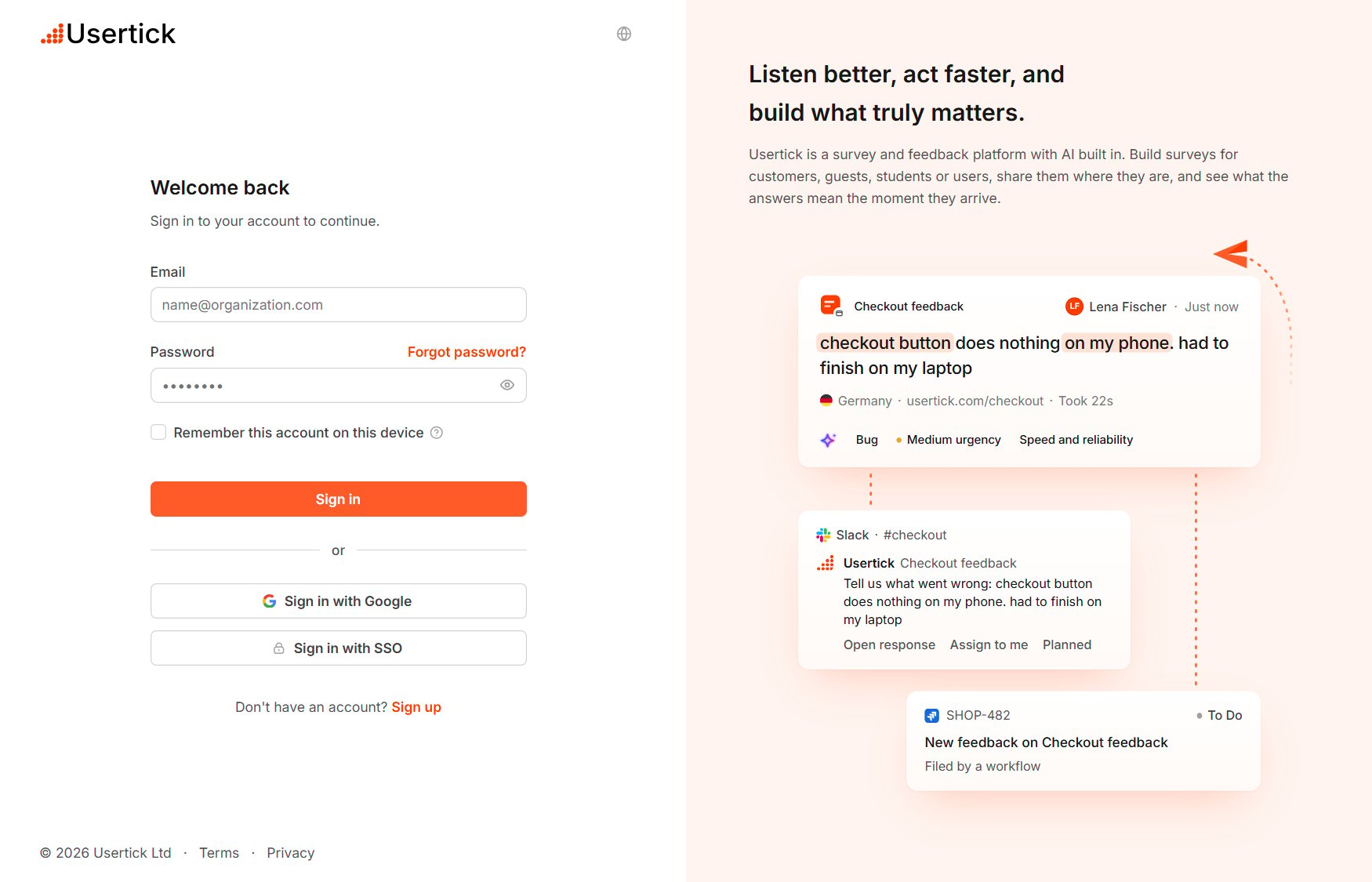
Welcome back
- Enter your Email and Password, then select Sign in.
- Select Sign in with Google.
- Select Sign in with SSO, enter your Work email and select Continue to go to your organization’s sign-in page. See How people sign in.
Connect Google to an account with a password
The first time an account that has a password uses Sign in with Google, Usertick asks you to confirm. Enter the Confirmation code sent to your email and select Connect Google. From then on, you can sign in to the account either way.Two-factor authentication at sign-in
If two-factor authentication is on for your account, Usertick asks for the Authentication code from your authenticator app when you sign in with a password or Google. Enter the code and select Verify. Signing in through single sign-on skips this step, because your identity provider’s checks apply instead. If you no longer have the authenticator app, select Lost your device?, enter one of the recovery codes you saved and select Recover access. Each recovery code works once, and Usertick emails you when a sign-in uses one. After 5 incorrect codes in 15 minutes, or 20 in 24 hours, Usertick doesn’t accept any authenticator code until that time has passed, although a recovery code still works. To turn on two-factor authentication or get new recovery codes, see Security.Reset your password
- On the sign-in page, select Forgot password?. The form keeps the email you typed.
- Select Reset password. Usertick emails a reset link to the address.
- Open the link, enter a New password and Confirm password, and select Update password. Then sign in with the new password.
Remembered accounts
The box starts unchecked, so to keep an account in this browser, select Remember this account on this device when you sign in. The browser stores the account’s email, name, photo and sign-in method, but it never stores a password or a session. Up to three accounts appear as tiles on the sign-in page:- Continue as signs in with that account’s method and asks for the password if the account uses one.
- Use another account opens the full sign-in form.
- Not you? on an account’s password step removes that account from the browser.
Set up your organization
After your first sign-in, Usertick asks a few questions and creates your organization.1
Start
On Welcome to Usertick, select Get started. If someone already invited you, the page lists the invitations instead, and you can open one to answer it or select Set up my own organization.
2
Answer the questions
Four questions follow: your main goal, the size of your organization, your industry and how you heard about Usertick. Only What industry are you in? is required, and you can pass the others with Skip. The industry sets the categories your responses are sorted into. See How responses are read.
3
Create the organization
On Create your organization, enter the Organization name, choose the Billing country and select Create organization. Usertick then opens the setup guide. See Follow the setup guide.
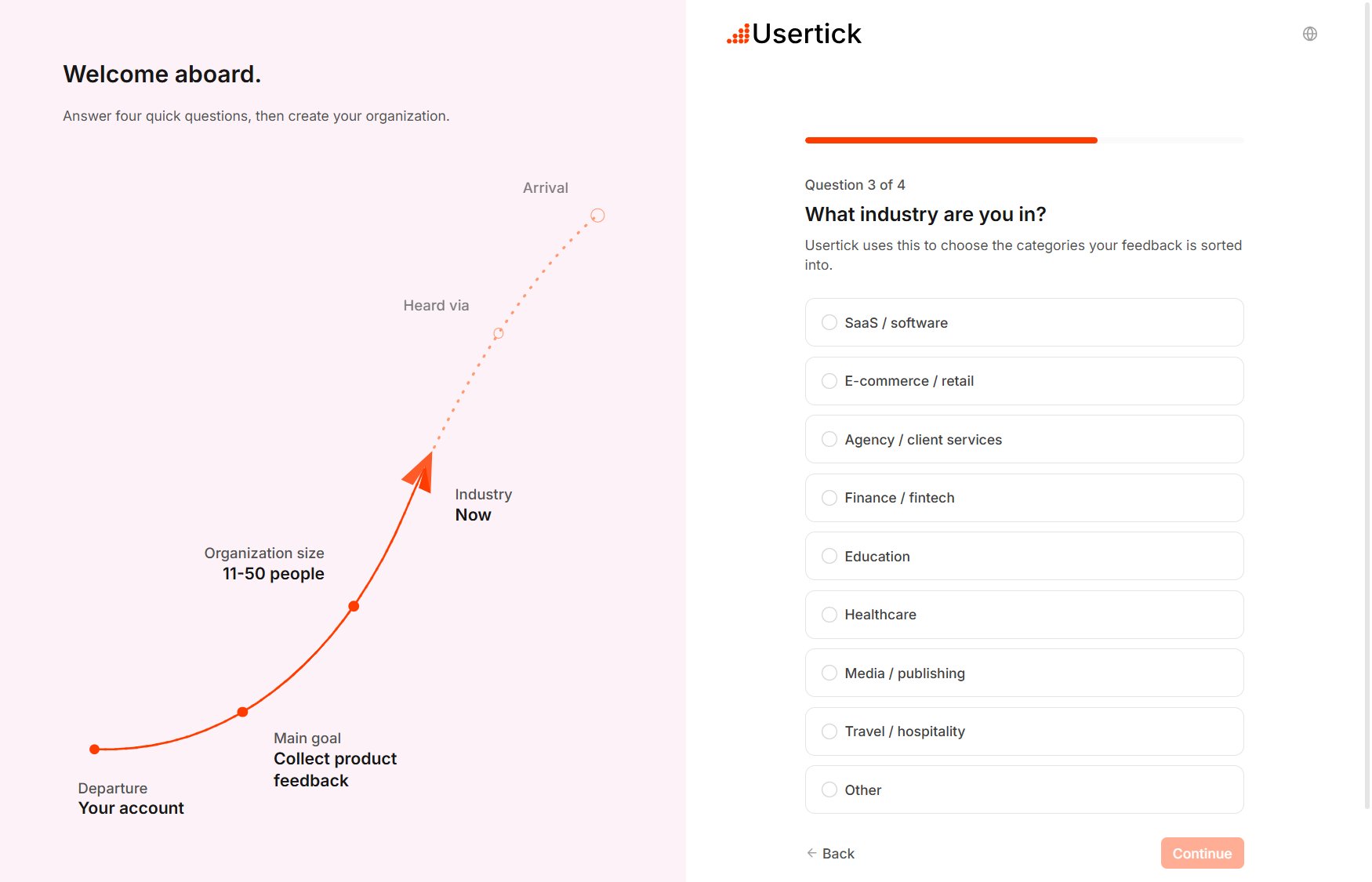
Question 3 of 4: the industry question
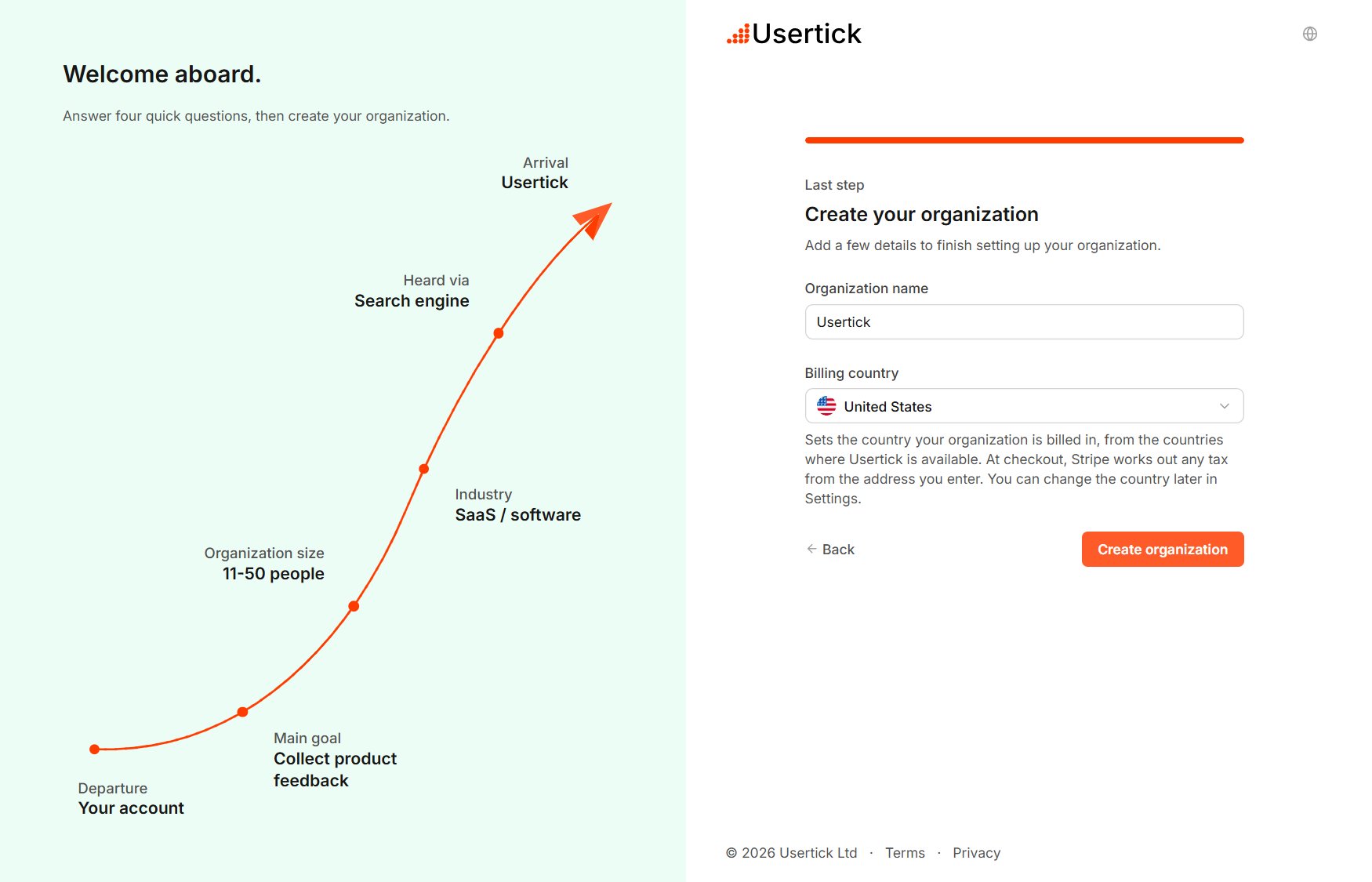
Create your organization
Accept an invitation
The invitation email links to a page that names the organization, your role and who invited you, and the invitation stays valid for 7 days.- If you are signed in with the invited address, select the Join button with the organization’s name.
- If you aren’t signed in, select Sign in, or Create an account with the invited address. Usertick brings you back to the invitation afterward.
- If you are signed in with another address, select Sign in with the invited address.
- To turn the invitation down, select Decline invitation. To join later, ask a member of the organization to send a new one.