

The Account menu
When you select your photo at the top right, the Account menu opens with these entries:- Profile, Security and Preferences open the pages of Settings → My account.
- Notifications takes you to the Notifications group on Preferences. See Notifications.
- Settings opens the whole settings area, with the entries your role can open.
- Invite people opens Settings → People → Members and appears only for roles with Manage members.
- Get help opens Help & support, and Contact support starts a new ticket. See Help and support.
- Documentation opens this documentation in a new tab.
- Keyboard shortcuts shows the list of shortcuts. See Search and keyboard shortcuts.
- Sign out signs you out of this browser.
Edit your profile
Settings → Profile holds your Profile photo, Full name and Email, and shows Member since, the day you created your account. Your team sees your name and photo in mentions, assignments and the activity log.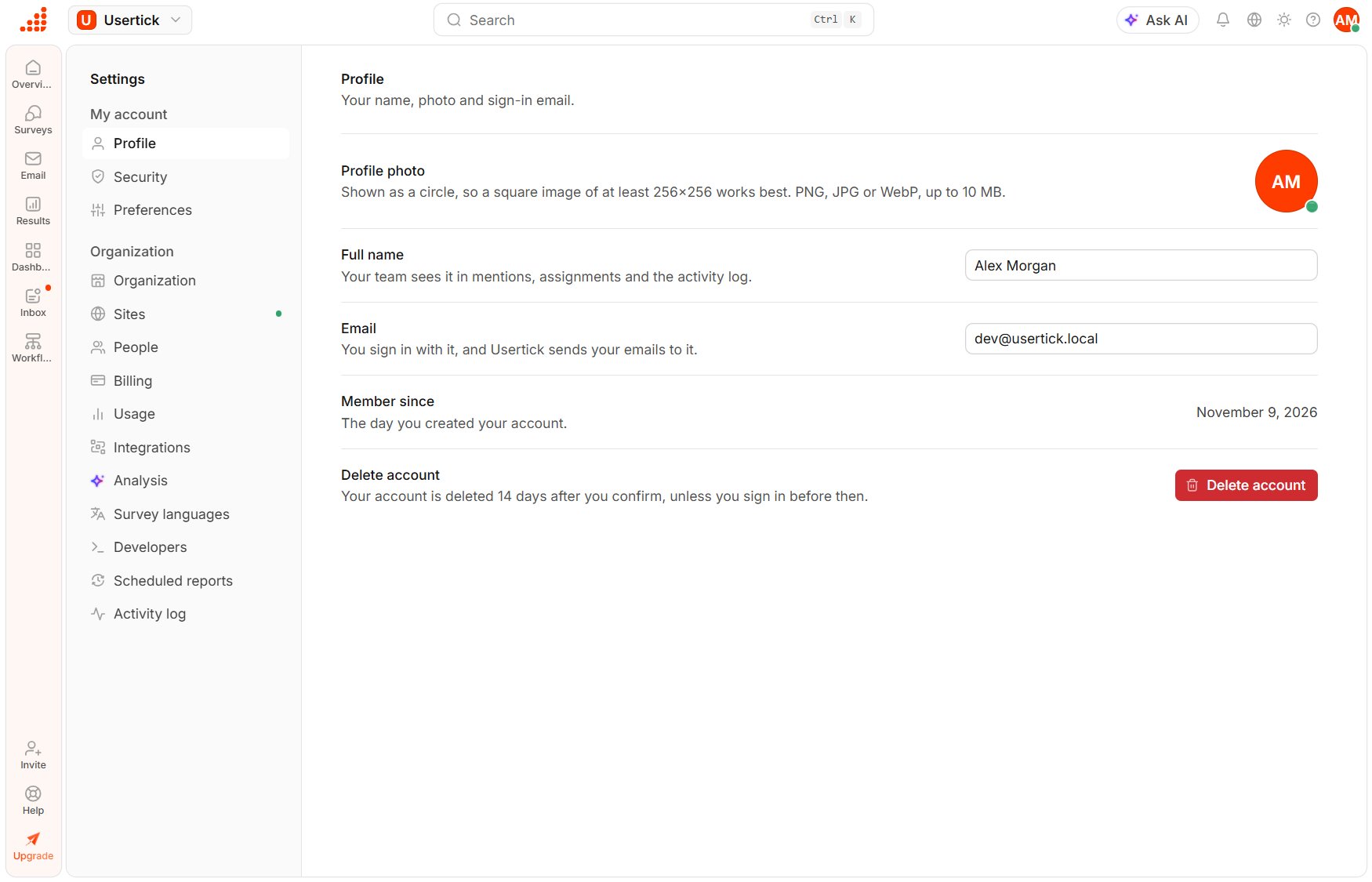
Settings → Profile
- Profile photo accepts a PNG, JPG or WebP image of up to 10 MB. Because the photo appears as a circle, a square image of at least 256×256 works best. When you pick an image that isn’t square, Crop image opens: drag the image and use Zoom to choose the part that shows, then select Crop. Remove goes back to your initials.
- Full name sets the name your team sees.
Change your email address
1
Enter the new address
In Settings → Profile, enter the new address in Email and select Save changes. The Change email dialog opens.
2
Request the codes
Select Send codes. Usertick sends a 6-digit code to your current address and another to the new one.
3
Confirm
Enter the code from each inbox and select Confirm change.
- The account has no password, so you need to set one in Settings → Security first.
- Single sign-on manages the address. See Accounts managed through single sign-on.
- The new address belongs to a disposable email service.
Choose your preferences
The settings in Settings → Preferences fall into four groups.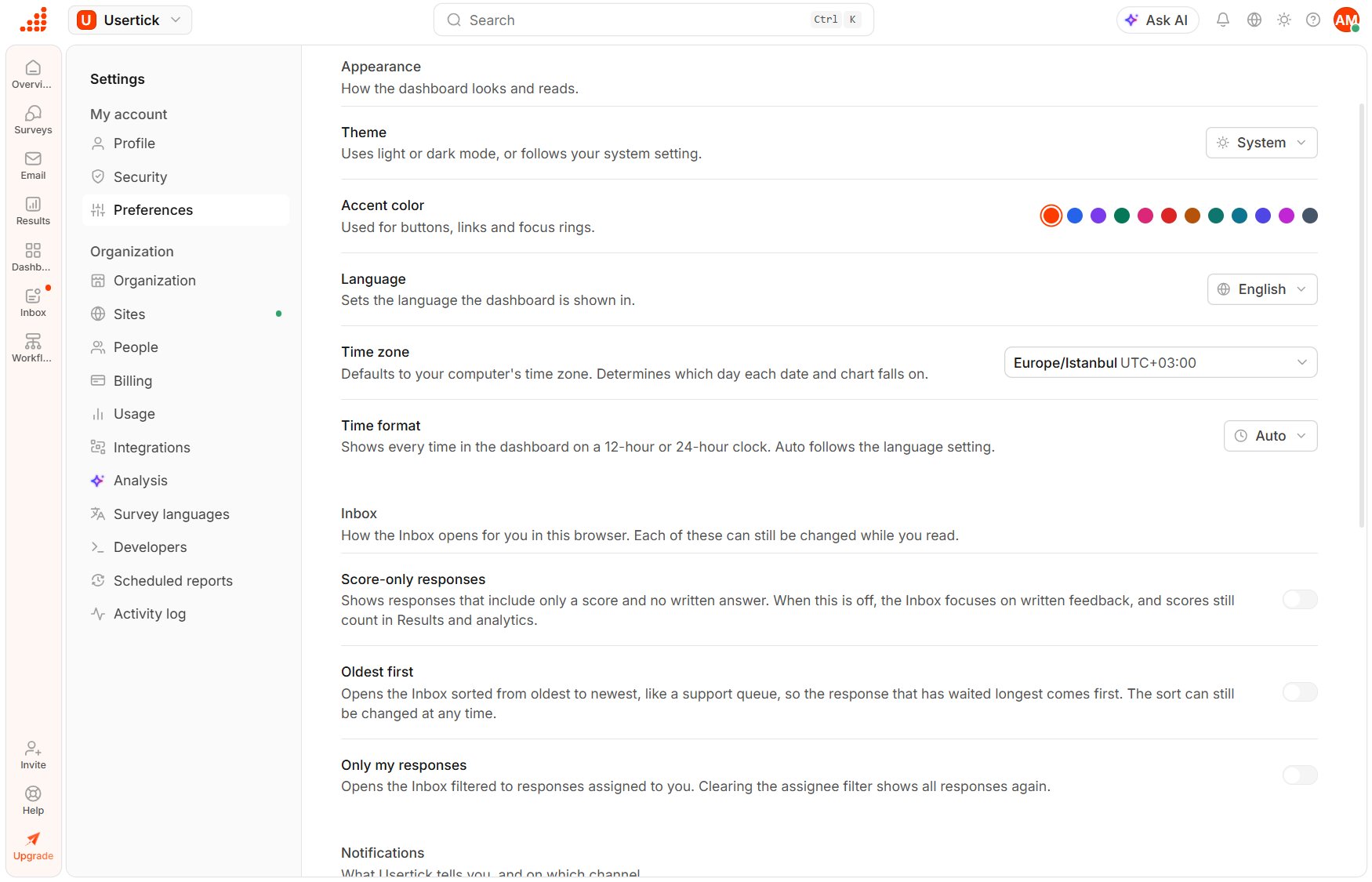
Settings → Preferences
Appearance
- Theme switches the dashboard between Light and Dark, or to System to follow your computer’s setting.
- Accent color sets the color of buttons, links and focus rings.
- Language controls the language the dashboard is shown in.
- Time zone decides the day each date and chart falls on, and it starts at your computer’s time zone.
- Time format chooses between a 12 hour and a 24 hour clock, and Auto follows the language.
Inbox
These switches set how the Inbox opens for you in this browser. You can still change each one while you read.- Score-only responses shows responses that have a score and no written answer, and it is on by default. When it is off, the Inbox focuses on written feedback, and the scores still count in Results.
- Oldest first opens the Inbox sorted from oldest to newest, like a support queue.
- Only my responses opens the Inbox filtered to responses assigned to you.