

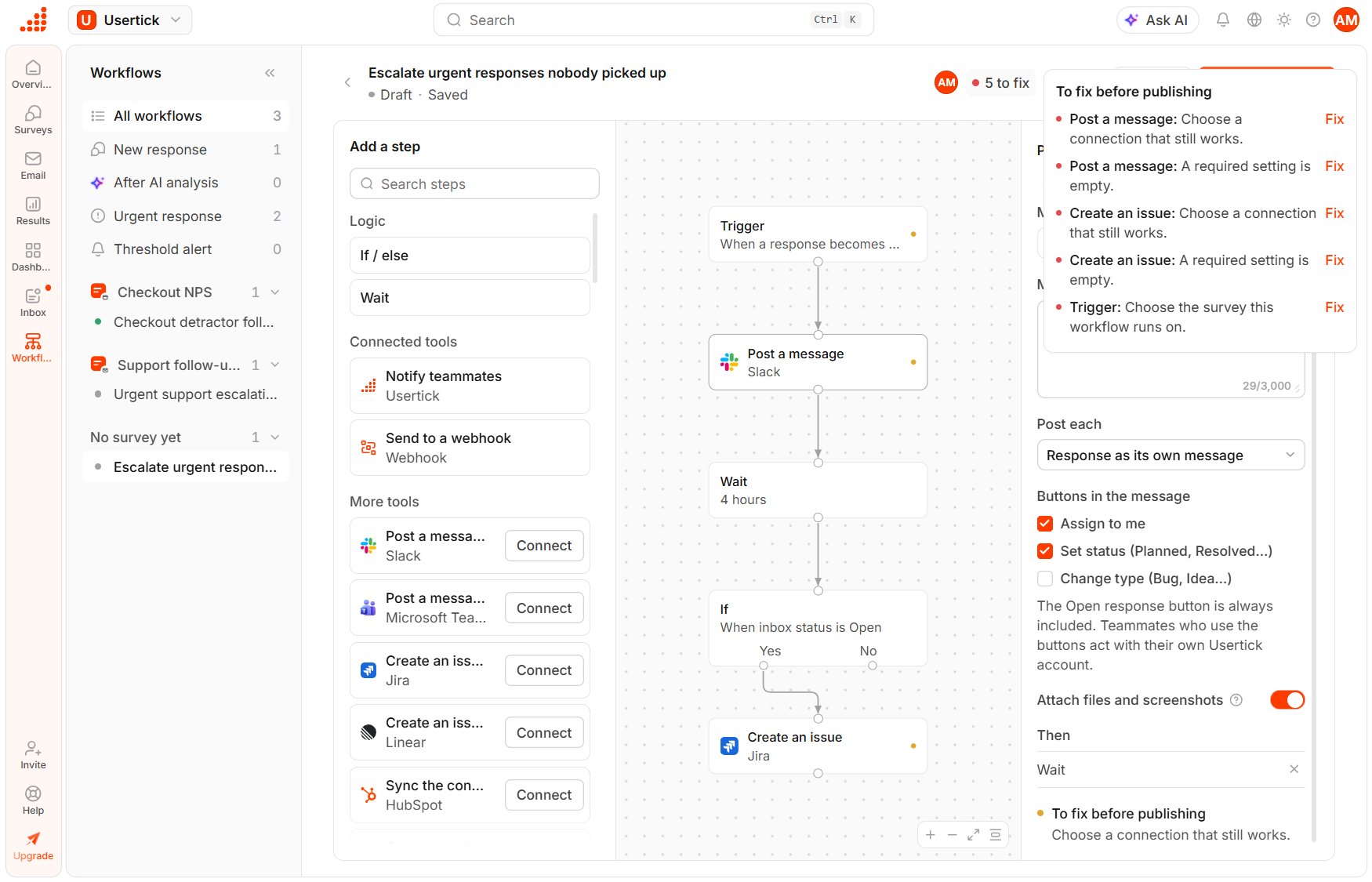
What blocks publishing
Publish a workflow
1
Fix what blocks publishing
If the top bar shows a count such as “2 to fix”, select it. To fix before publishing lists each problem, and Fix opens the step that has it.
2
Publish
Select Publish workflow. Usertick publishes the draft, leaves edit mode and shows the workflow as it now runs.
Edit while someone else is editing
Only one person can edit a workflow at a time. While someone else edits it, the workflow is read-only for you, with a notice that names them, and you can edit it after they leave. To edit anyway, select Take over. The other person’s saved version loads first and they switch to read-only, so none of their saved work is lost. The same applies to a workflow you have open in another tab.Turn a workflow on or off, duplicate or delete it
While a workflow is open for viewing, the … menu next to Edit workflow offers these actions, and the … menu of each row on the Workflows page offers the same ones.- Turn on and Turn off. A workflow that is off runs nothing, and runs already in progress, such as one in a wait, end without sending. Turn on becomes available after the first publish.
- Duplicate workflow creates a draft copy named “Copy of” followed by the name, and opens it in edit mode.
- Delete asks you to type the workflow’s name, then deletes the workflow and its run history and stops any runs in progress. You can’t undo the deletion.