

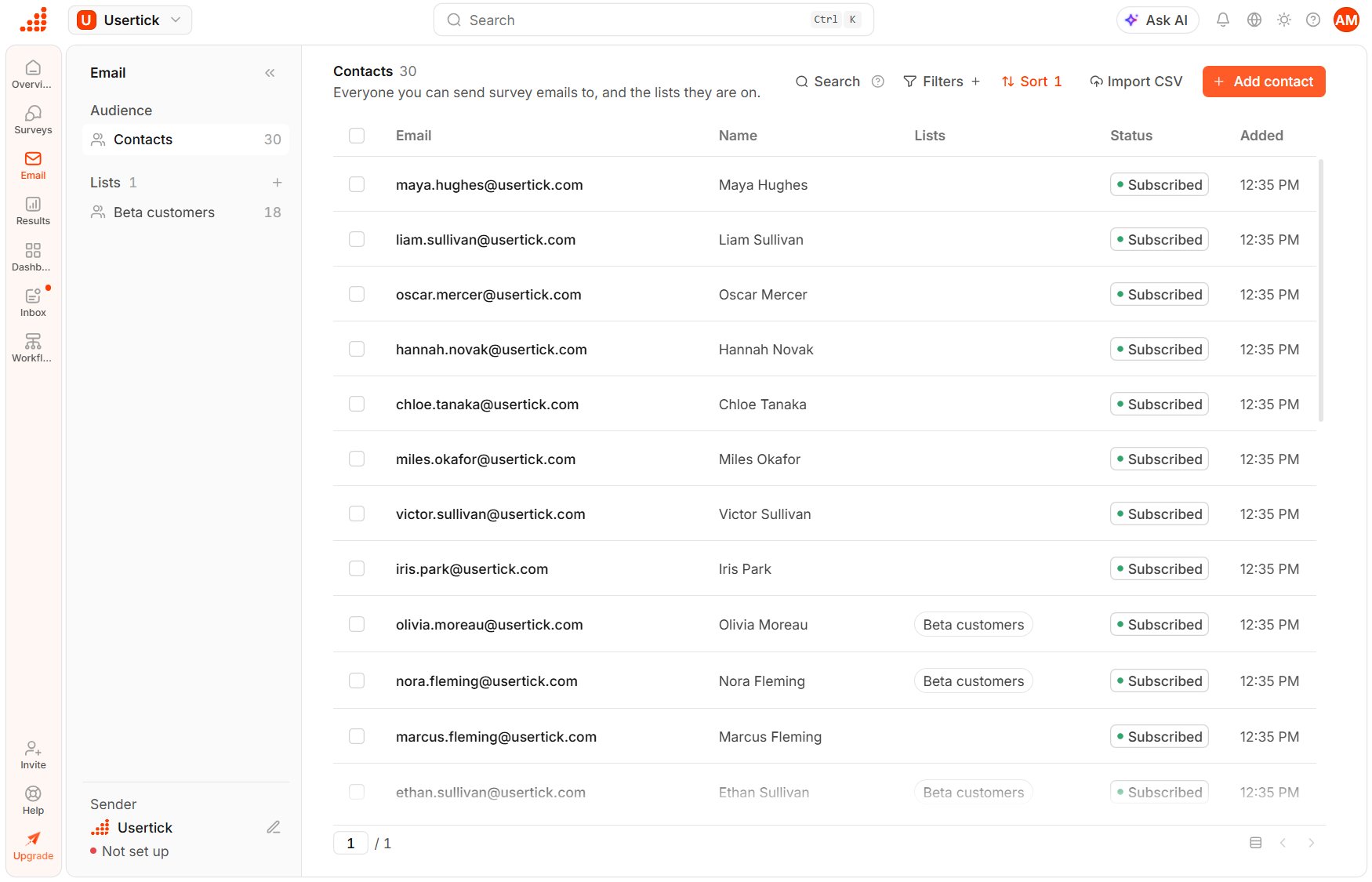
Email → Contacts
Find a contact
The table lists each contact under the columns Email, Name, Lists, Status and Added.- Search finds contacts by their email address or name.
- Filters narrows the table by List, by Status (Subscribed or Unsubscribed) and by Added (Last 7 days, Last 30 days or Last 90 days).
- Sort puts the contacts in order by Date added, Name or Email.
list:Customers, is:subscribed, is:unsubscribed and added:7d, added:30d or added:90d. Put a list name that contains spaces in quotes, and press Enter to apply the filters.
Add a contact
- Select Add contact.
- Enter the person’s Email and, optionally, their Name.
- Under Lists, add the lists the person belongs on. If you started from an open list, that list is already selected.
- Under Details, select Add field to add extra fields that emails can insert, such as company or plan.
- Select Save, or Save and add another to keep the form open for the next person.
Import contacts from a CSV file
Select Import CSV and choose a file with one address per line, optionally followed by a name, in the formemail,name. If a list is open, Usertick also adds the people to that list.
You can import a file of any length. A message shows the progress as the rows come in, and at the end it says how many people were added, how many were already in your contacts, how many addresses weren’t valid and how many were repeated in the file. If an import stops partway, the people added so far are kept, and when you import the same file again, Usertick skips the addresses already in your contacts.
Manage lists
- To create a New list, select + beside Lists, then enter a name and choose an icon. One person can be on many lists.
- Edit list in a list’s … menu changes its name or icon.
- Send a survey to this list, in the same menu, opens New send with the list already in To.
- Delete list, also in that menu, asks you to type the list’s name to confirm. The people stay in your contacts, and past sends keep the list name. A scheduled send to the list stops when its time comes, so nobody receives it.
Change several contacts at once
After you select contacts in the table, you can act on all of them at once:- Add to list adds them to the list you choose. To put them on a new list, type its name and select Create list.
- Remove from takes them off the list that is open.
- Delete removes them after you confirm by typing
deleteand the number of contacts.
Open a contact
Select a contact to open their panel.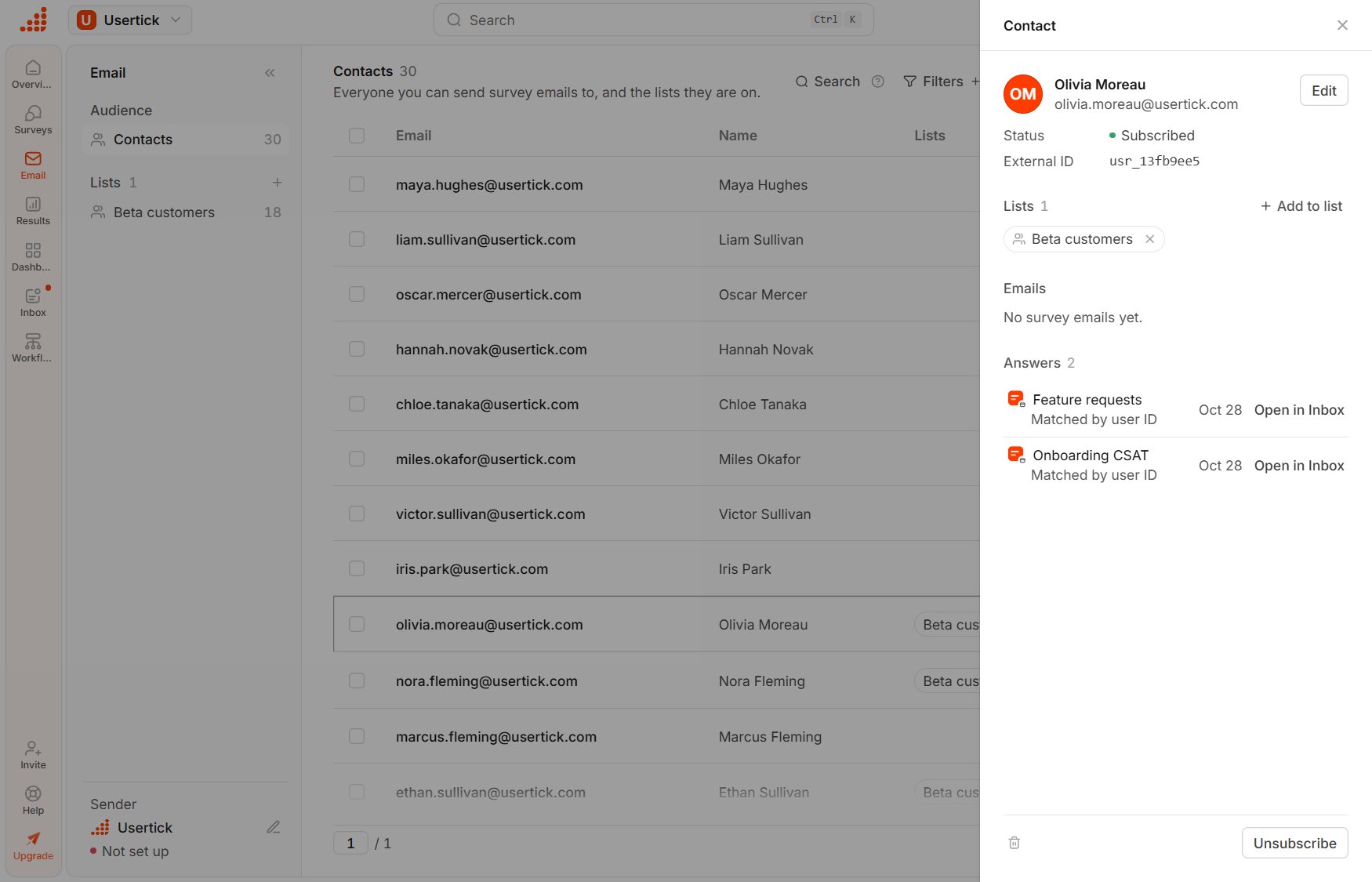
A contact's panel
- Status reads Subscribed, or Unsubscribed with the date.
- External ID holds your own user ID for this person, and verified responses from your site that carry this ID link to the contact. See How a response links to a contact.
- Source appears when a verified sign-in on your site or a HubSpot workflow created the contact.
- Lists lets you add the person to a list with Add to list, or to a new list by typing its name and selecting Create list, and remove a list with its ×.
- Emails lists every survey email sent to the person with its result, and selecting one opens the send.
- Answers collects the person’s responses, each with the reason it is linked to them, such as Responded to a survey email or Matched by user ID. Open in Inbox opens the response.